
What’s on this page:
- Setting Up Panel Redirects
- Panel Variables
- Obtaining Survey Links
Setting Up Panel Redirects
When sourcing respondents from a panel, those respondents typically need to be sent back to the panel’s web portal after they take the survey. They are sent back with a URL, called a redirect, that also tells the panel what that respondent’s outcome was in the survey. The panel you are working with will provide the redirects they want you to use, and typically they’ll provide separate links for panelists who completed the survey, did not qualify for the survey, or were over quota. To set up panel redirects, first create a campaign in the Distribute section. Next, navigate to the “Panel” tab using the left navigation menu. If you don’t see the “Panel” option on the menu, email support@sightx.io and the team will enable this option in your account.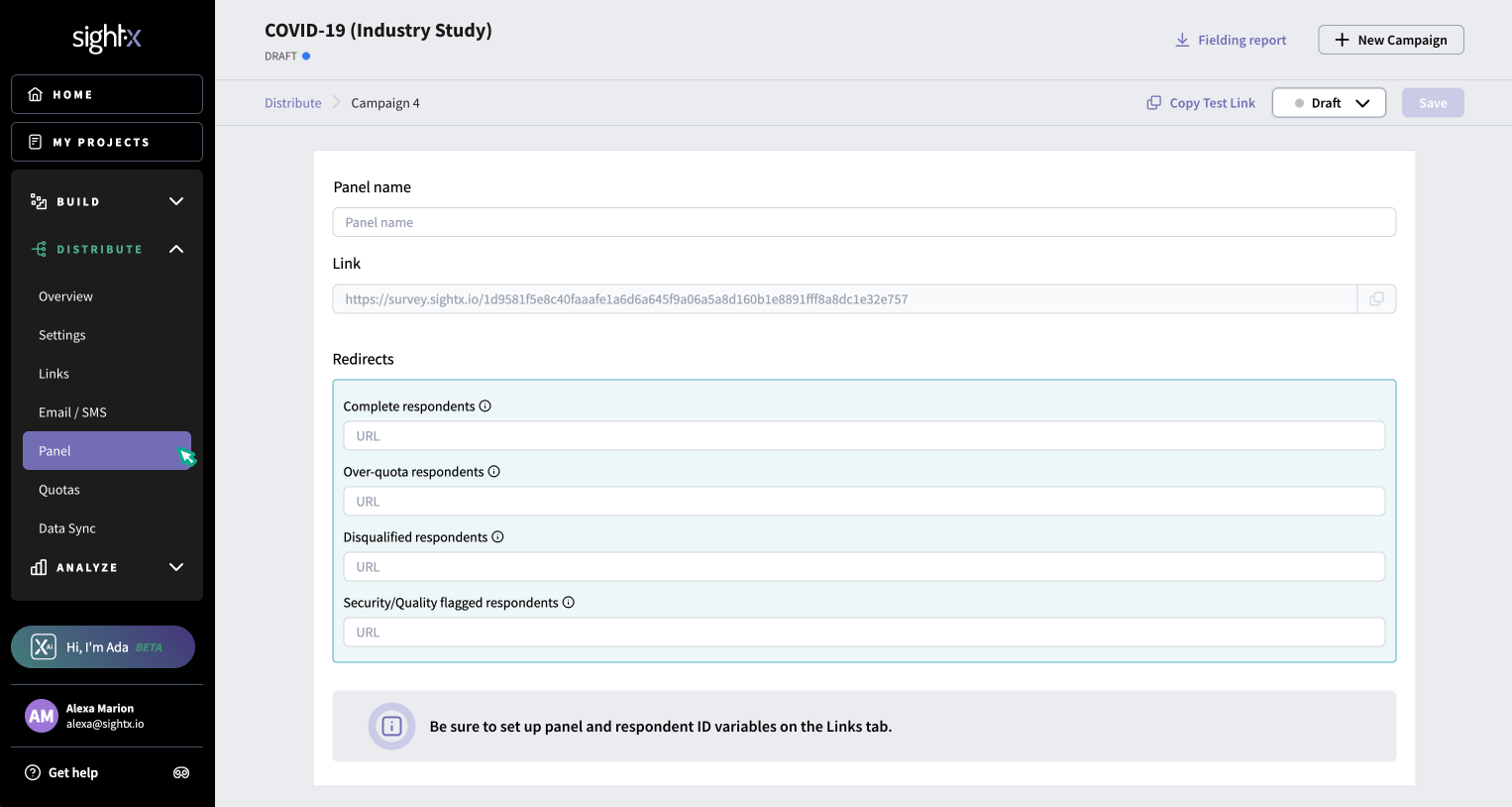
Respondent ID and Panel Variables
Panel variables are any variables that the panel appends to the survey link that respondents use to access the survey via the panel invitation. For example, a SightX survey link looks like this: https://survey.sightx.io/c1e82ac9977e912e399224 The link that the panel sends to their respondents may look like this: https://survey.sightx.io/c1e82ac9977e912e399224?**panel_ID=123456** Typically, panels include a respondent ID variable in the survey link, which needs to be passed back to the panel in the redirect URL when the respondent returns to the panel after taking the survey. The name of the respondent identifier variable varies by panel, but the panel will be able to tell you what it is. To set up panel variables, navigate to the Links page within the Distribute section, using the left side menu. At the bottom of the page, you’ll see the section URL Variables. Click the button to add a new variable, and type in the variable name as provided by the panel. Hint: The variable name is the string before the equal sign. For example, in the link below, the variable names are “panel_ID” and “age”, while the variable values are “123456” and “41”. The variable names stay the same for every respondent, while the variable values are unique to each respondent. https://survey.sightx.io/c1e82ac9977e912e399224?**panel_ID** =123456&age =41 There are two additional settings for each variable:- Require in URL: when turned on, respondents who enter the survey with a survey link that does not contain the variable will be disqualified.
- Require unique value: when turned on, every respondent is required to have a unique value for this variable. This is usually used for respondent identifiers.