- When to Use Logic vs Conditional Display
-
Setting Up Survey Logic
-
- Skip Logic
- Disqualification Logic
- End of Survey Logic
- Always Skip
- Else Skip
- AND Logic
- OR Logic
- Editing or Deleting Logic
- Changing Logic in a Live Project
- Examples
-
-
Setting Up Conditional Display
- Conditional Display on Question Pages
-
- Showing, Hiding, or Disabling an Answer Option
- Disabling an Option
When to Use Logic vs Conditional Display
Logic allows you to create a path through the survey for respondents, based on their answers to survey questions. It is most useful for disqualifying respondents, directing respondents to the end of the survey, or to have respondents skip questions or entire pages in the survey. Conditional Display allows you to show or hide a question or an answer option based on a respondent’s answers to prior questions. It is different from skip logic because skip logic is used to jump a respondent to another part of the survey (or to disqualify the respondent). Use logic to:- Disqualify a respondent from the survey
- Jump a respondent to another part of the survey
- Hide a question from certain respondents
- Hide an answer within a question from certain respondents
Setting Up Survey Logic
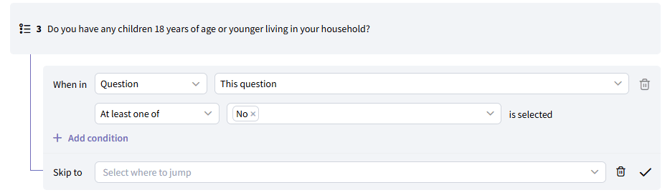
To add logic to your survey, navigate to the Logic page in the left navigation menu in the project Build module. Hover over the question you want to set logic on, and click “Add logic.”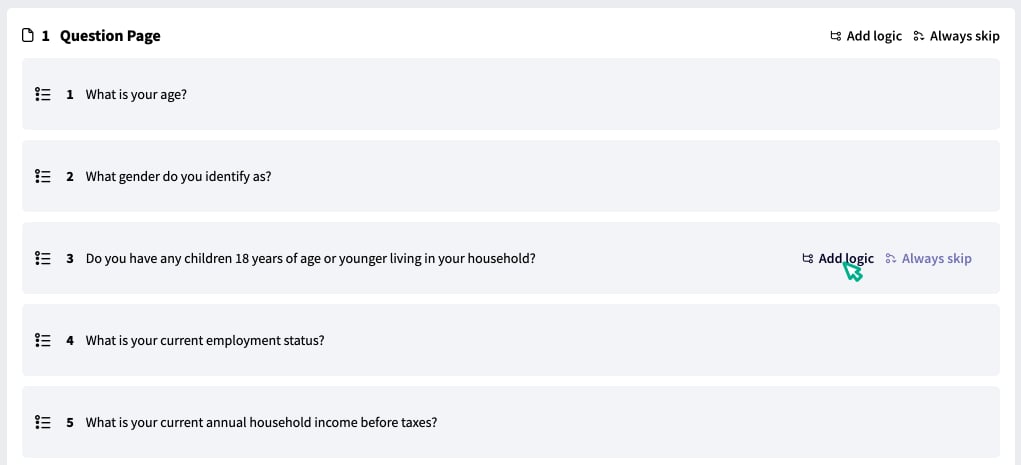
Skip Logic
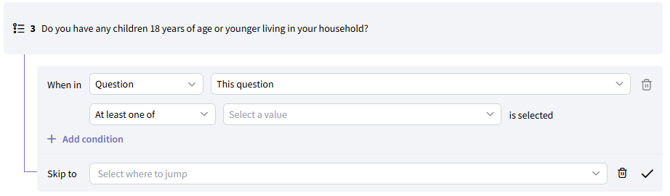
If you want the respondent to skip forward in the survey when the logic condition is met, select the page and question you want the respondent to skip to in the dropdown.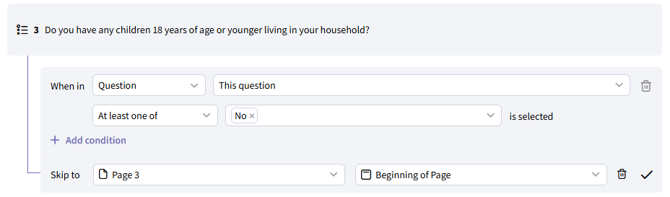
Disqualification Logic
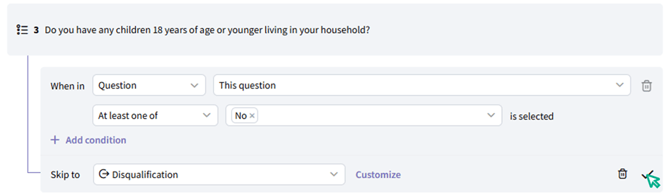
If you want the respondent to be disqualified from the survey when the logic condition is met, select “Disqualify” from the dropdown. When a respondent is disqualified, their answers are not included in the data analysis and they will not count as a completed survey response.End of Survey Logic
If you want the respondent to move to the end of the survey when the logic condition is met, select “End of survey” from the dropdown. ‘End of survey’ is different from ‘Disqualify’ because the respondent’s answers are included in the data analysis and they will be counted as a completed survey response.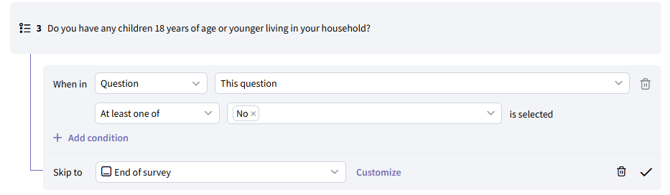
Always Skip
You can add ‘Always skip’ logic if you want to create a logic rule without a condition. This can be useful if you’ve programmed a question in the survey that you always want respondents to skip.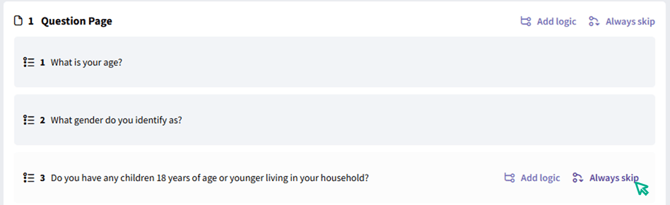

Else Skip
If you’ve added a conditional logic statement, you can add an ‘Else skip’ in addition, which will apply to all respondents who do not satisfy the logic in the logic statement. First, select “Else skip” after the logic statement you’ve added.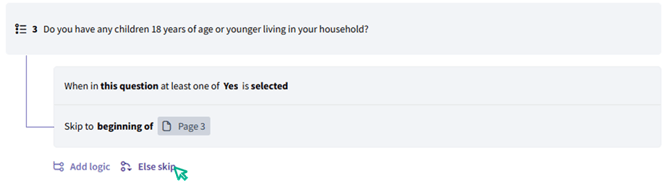
AND Logic
You can set up AND logic statements based on answers to multiple questions by adding additional logic conditions to your logic block. Simply click ”+ Add condition” and add another question and answers to the logic statement.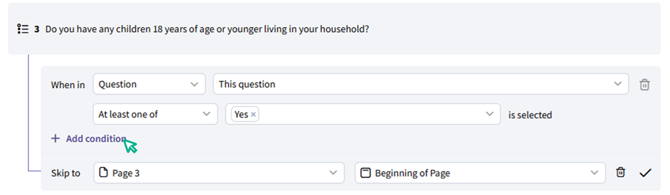
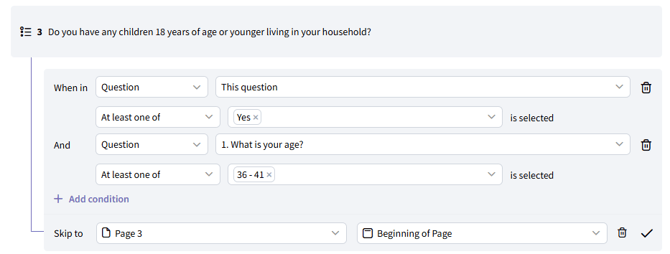
OR Logic
You can set up OR logic statements by adding multiple logic blocks under one question. Simply click “Add logic” underneath the first logic block and add another logic statement.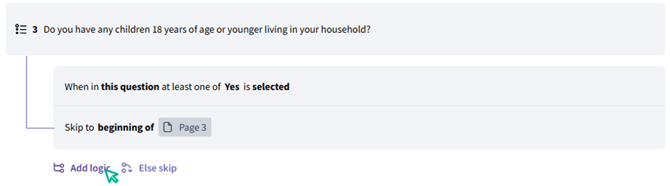
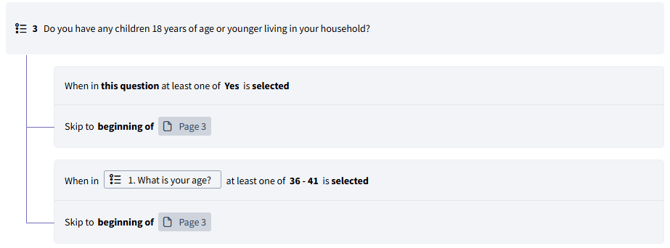
Consecutive Logic Statements
You can set up logic statements based on answers to multiple questions by adding additional logic conditions to your logic block. Simply click ”+ Add condition” and add another question and answers to the logic statement.Editing or Deleting Logic
To edit or delete logic, hover over the logic statement and select either the pencil icon to edit, or the trash bin icon to delete the logic statement.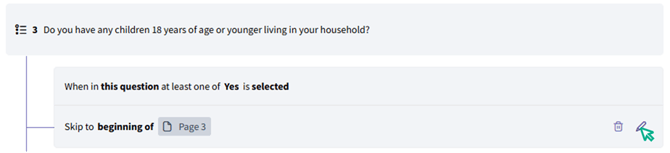
Changing Logic in a Live Project
You can change logic while your survey has live campaigns and respondents participating in the survey. However, if you do so, any respondents who are in the midst of taking the survey will have their session closed and will need to re-enter the survey to participate. To change logic in a live project, navigate to any page in the Build module and unlock the project. The platform will automatically “lock” your project once it has received survey responses so that you or another user doesn’t unintentionally make changes to the live survey. To unlock the project, click on “Locked” in the upper right corner of the page:
Examples
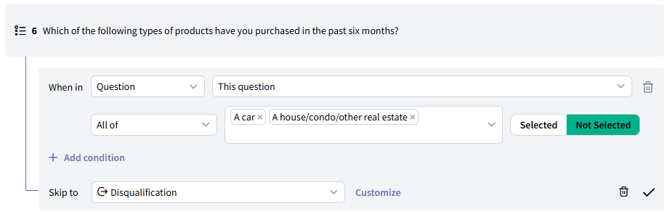
Example 1 The differences between “At least one of”, “None of”, and “All of”, ”# of options selected”, and ”# of rows” are as follows: At least one of “At least one of” means that at least one of the selected answers must be chosen by the respondent for the logic statement to be satisfied. If the respondent chooses any of the specified answers, the logic will apply. In the example below of a single-select multiple choice question “Who in your household is primarily responsible for purchasing decisions?”, if the respondent chooses “Someone else is responsible”, they will be disqualified from the survey.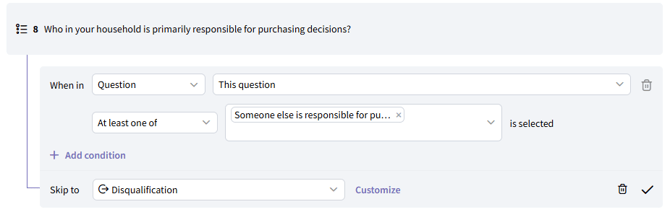
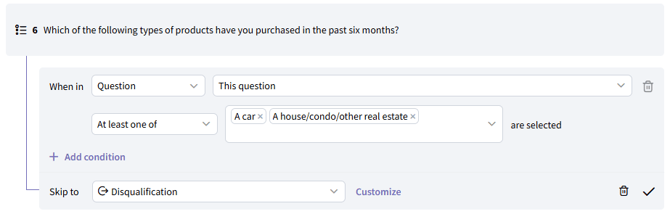
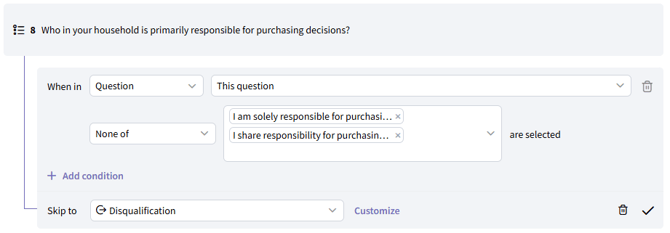
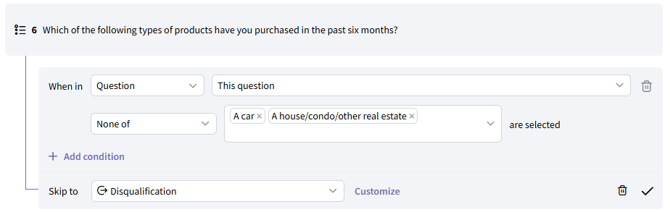
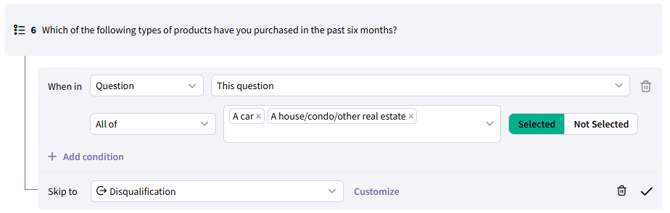
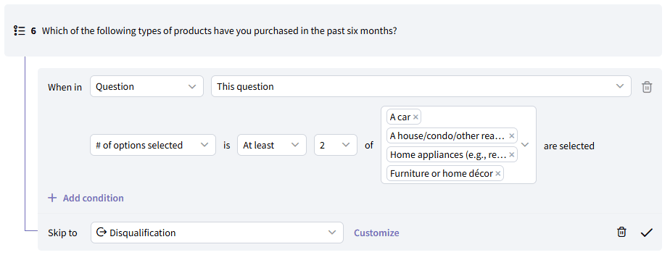
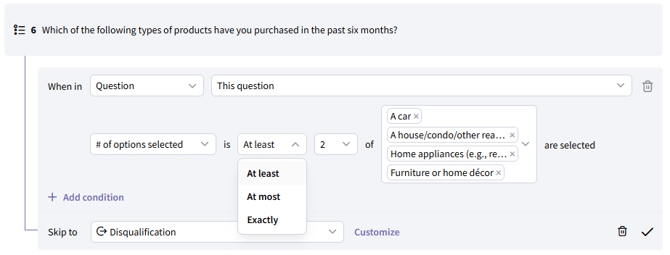
- At least: The condition is met if the respondent selects the specified number of items or more
- At most: The condition is met if the respondent selects the specified number of items orless
- Exactly: The condition is met if the respondent selects exactly the specified number of items
- I am confident in my current…
- I expect my financial situation…
- I feel comfortable making…
- I actively research products…
- Price is an important factor…
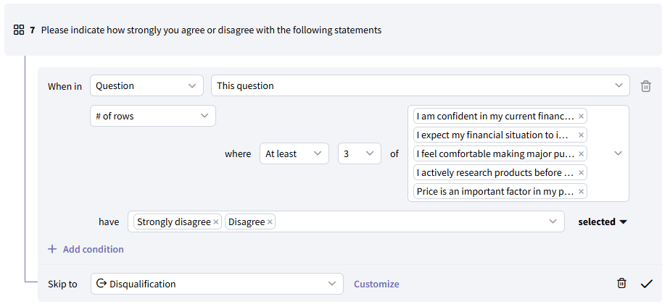
- At least: The condition is met if the respondent selects the specified number of rows or more
- At most: The condition is met if the respondent selects the specified number of rows orless
- Exactly: The condition is met if the respondent selects exactly the specified number of rows
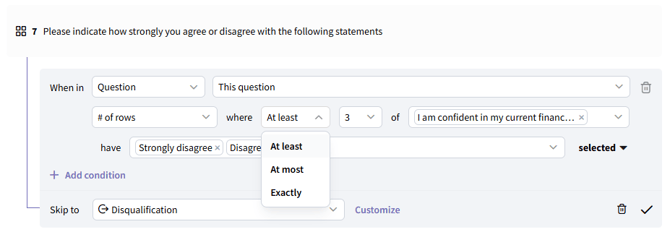
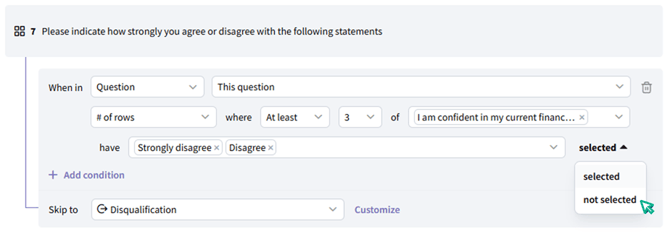
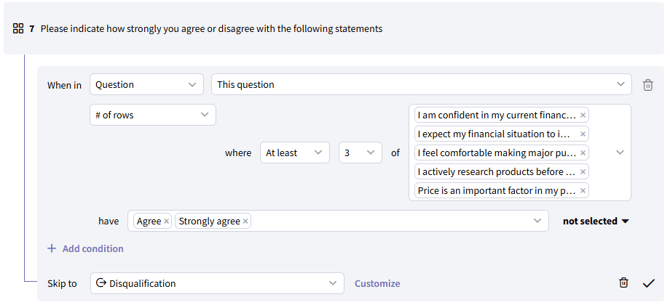
- I am confident in my current…
- I expect my financial situation…
- I feel comfortable making…
- I actively research products…
- Price is an important factor…
Setting Up Conditional Display
In the question you want to show or hide conditionally, click on the “Conditional Display” tab in the question create section.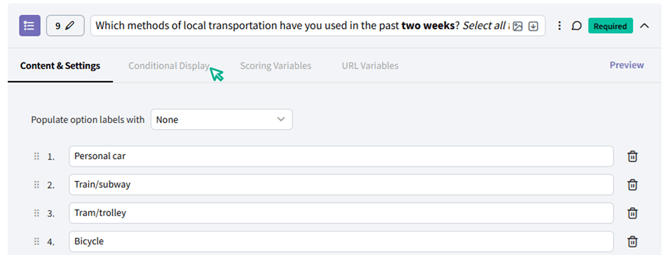
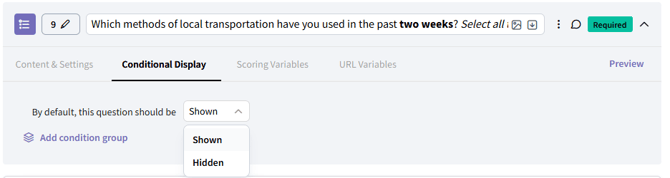
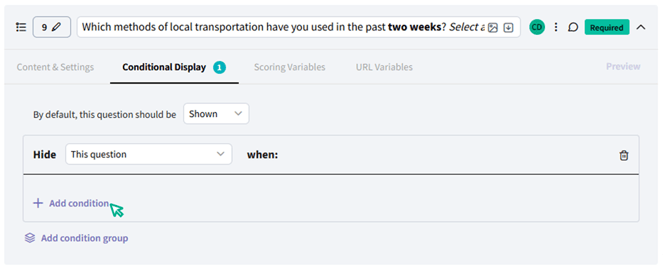
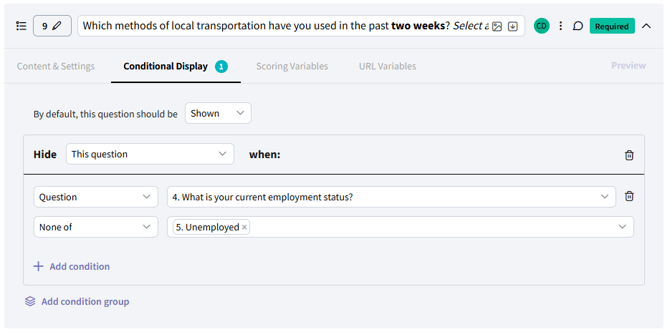
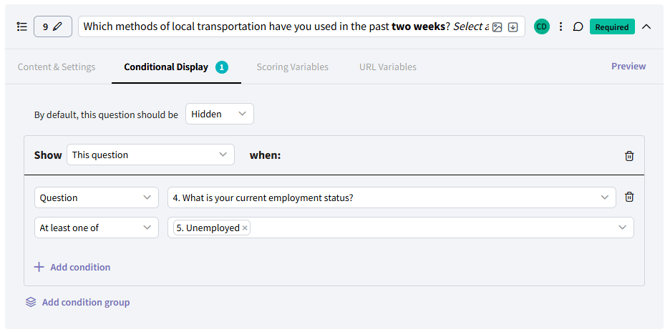
AND Conditional Display Logic
You can show or hide a question based on a respondent’s answers to multiple questions by adding more conditions to the condition block. Simply select ”+ Add condition” underneath the condition you already created. From there, you can select an additional question and conditions to include in your conditional display rule: Important note: When you add multiple conditions to the same condition block, you are creating an “and” statement in which all of the conditions within the block need to be met for the logic to apply. To create an “or” statement, you would click ”+ Add condition block ” to add an entirely new condition block to the logic.OR Conditional Display Logic
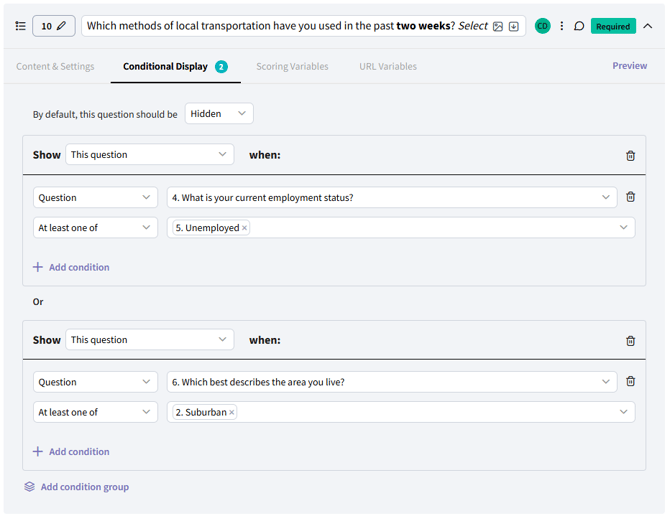
To set OR logic - where only one of the logic statements needs to be satisfied - simply click ”+ Add condition group” underneath the first condition block, and add a new logic statement.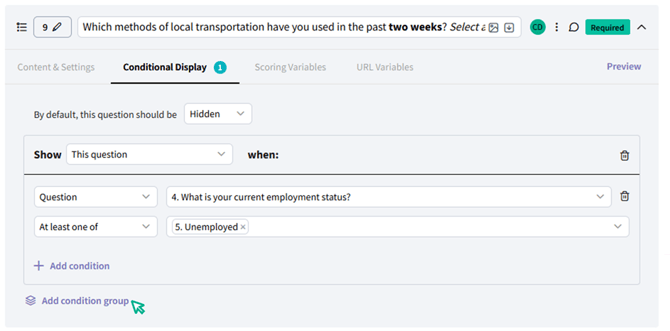
Conditional Display on Question Pages
You can show or hide an entire block of questions by setting conditional display on a question page. Simply add the questions to a page, and then navigate to the Conditional Display settings for the page. Set up the conditional display statement as described above.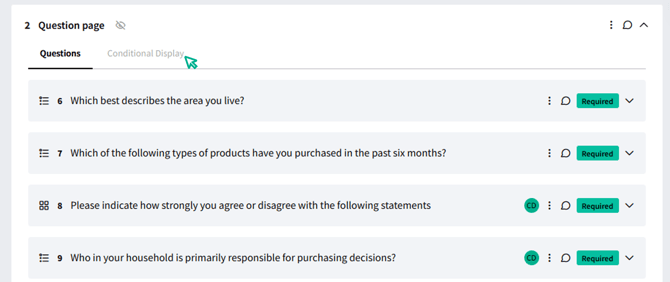
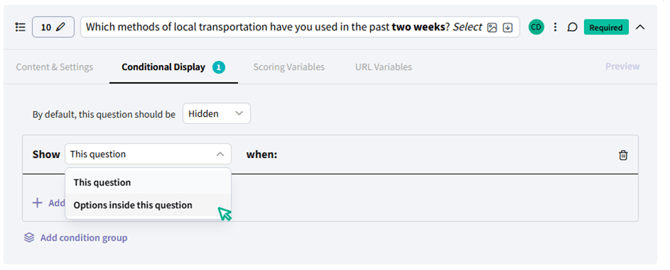
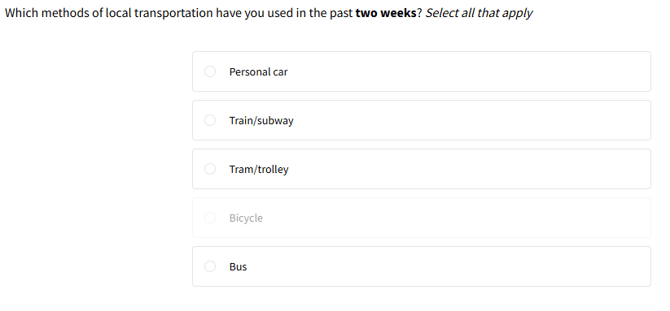
Showing, Hiding, or Disabling an Answer Option
You can also conditionally show, hide, or disable an answer option within a question. You can do this by following the instructions above, but instead of choosing “This Question” choose “Options inside this question”. Then add conditions in the same way you would add them to hide or show a question: