At SightX, you can set quotas for concept tests to control how many times each concept is shown. You can also define how often each concept is viewed by specific demographic groups within your survey. Below, we explain how to set this up.
What’s in this article:
- Define Views per Concept
- Balance Demographics Across Concepts
- Track Concept Views
- Video Tutorial
Define Views per Concept with Quotas
By default, SightX will try to achieve equal views of each concept in your concept test. However, you may want to set a specific number of views for each concept, track the views per concept, or set demographic quotas within each concept. In that case, you should set up quotas on your concept test:- Navigate to the Distribute section and create a new campaign.
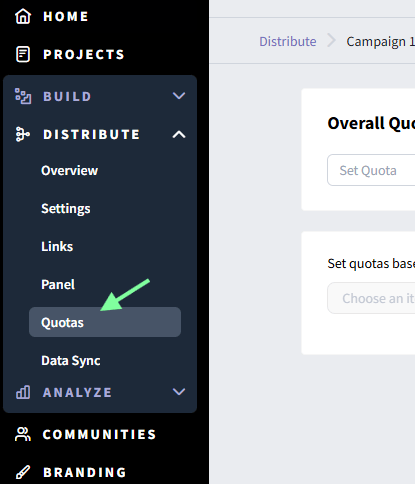
- Within your campaign, go to the Quotas page.\
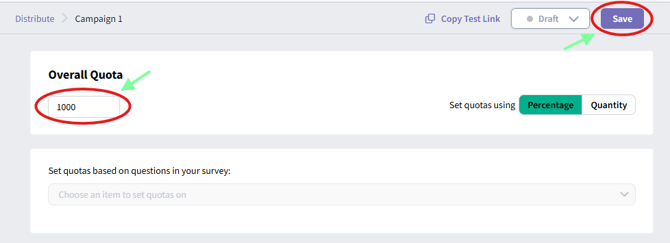
- Set your overall quota for how many respondents you want to participate in the campaign and click Save in the upper right corner of the screen.\
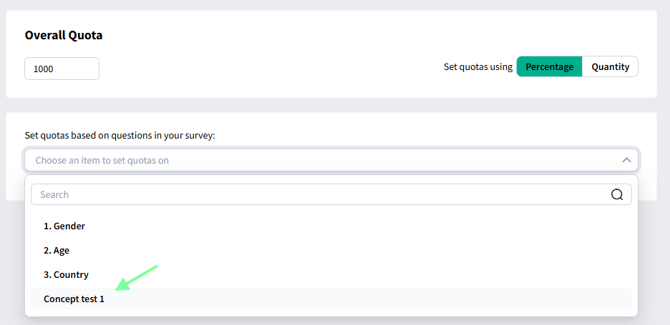
- To set views per concept, select your concept test from the dropdown menu of survey questions.\
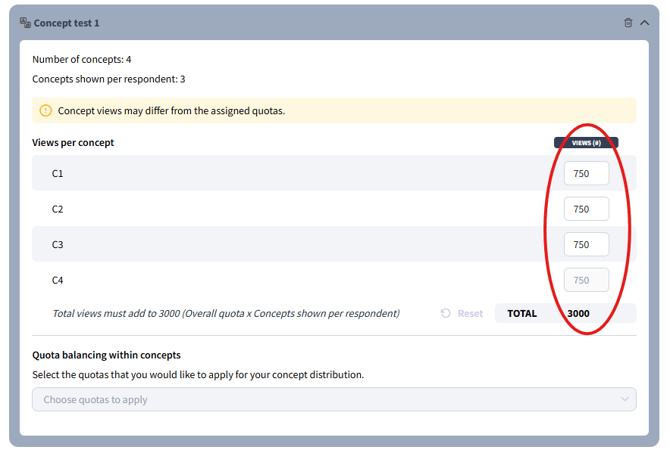
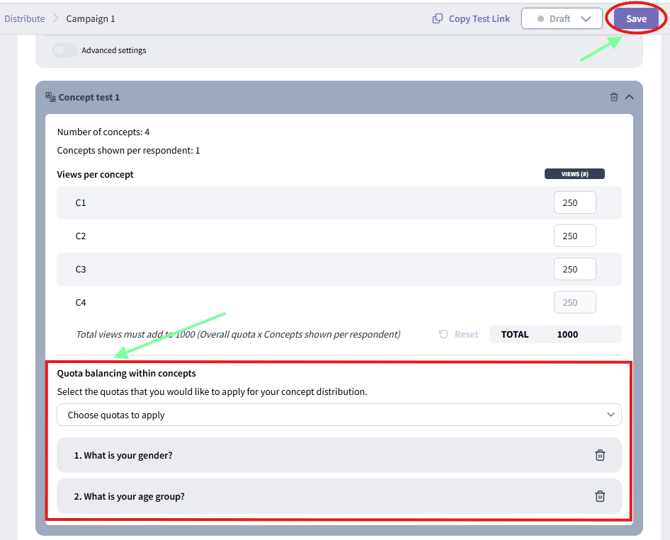
- By default, SightX will populate the views per concept evenly for all concepts in the test. If you do not want each concept to be shown an equal number of times, you can edit the views. The total of all concept views must equal:
- When you’re done setting quotas on this page, click the Save button in the upper right corner to apply your configuration.
Balance Demographics Across Concepts
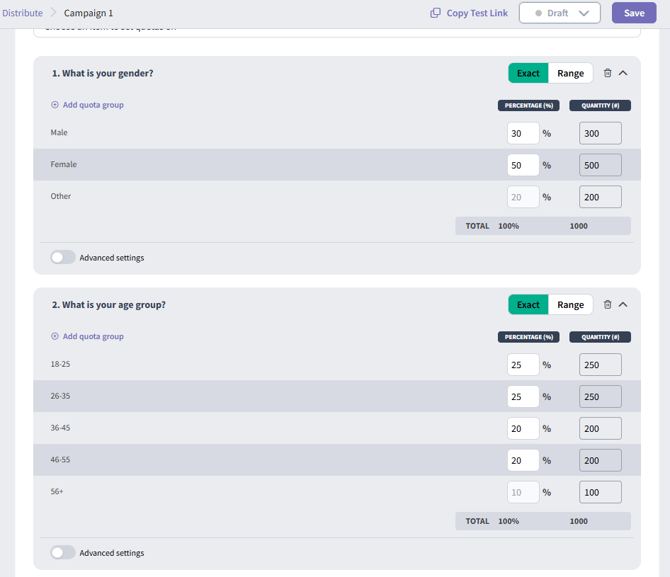
In addition to making sure concepts receive the same number of views, you may want the demographics of the respondents who evaluate each concept to be similar across each concept. If concepts are assigned purely based on least-fill, the demographics of the respondents for each may be skewed so that certain demographic groups are over- or underrepresented in some concepts. Consider a survey with the following demographic questions:- Gender: Male, Female, Other
- Age: 18-25, 26-35, 36-45, 46-55, 56+
SightX allows you to set up your quotas so that this distribution is applied within each concept, ensuring that each concept mirrors the intended demographic distribution of the total sample.
- Follow steps 1 through 5 above to set quotas on your concept views.
- Next, add the demographic questions you want to balance in your concepts, and set the quotas to your desired target sample distribution.\
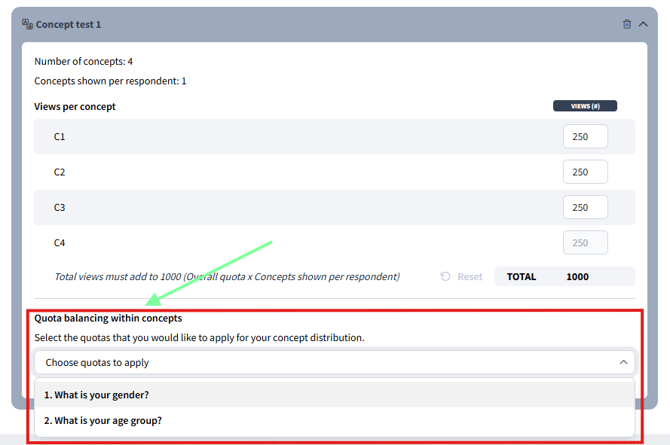
- In the concept test quota block, you’ll see a section at the bottom for “Quota balancing within concepts”. Here, you can select the quotas that you want to link to the concept test.\
- Click Save to apply your configuration.\
Track Concept Views
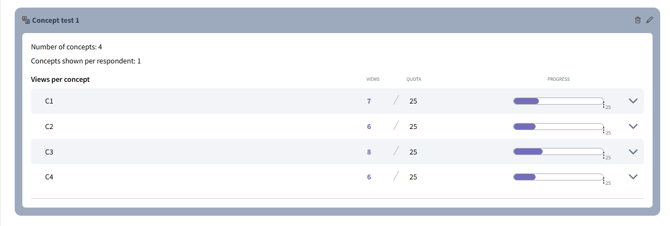
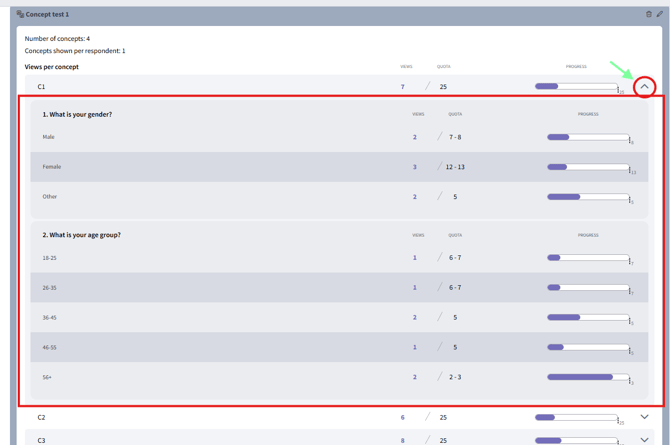
Once your campaign is live, you can monitor progress in the Quotas dashboard, where you’ll see how many times each concept has been viewed by each demographic group. You can track how many times each concept has been viewed overall: