- Data Cleaning Basics
- Automated Data Cleaning
- Manual Response Removal
- Restoring Scrubbed Responses
Data Cleaning Basics
Before you begin cleaning data in a project, you’ll need to Pause or Close any live campaigns so that respondents cannot access the survey while you’re removing responses from the project. To do so, navigate to the Distribute module and click on your live campaign, and then select either “Pause” or “Close” in the upper right corner. Important Note: Once you close a campaign, you cannot open it again and the survey link associated with that campaign will no longer work. We recommend pausing your campaign when you clean your data, and only closing the campaign when you are absolutely sure you are done fielding responses for your project.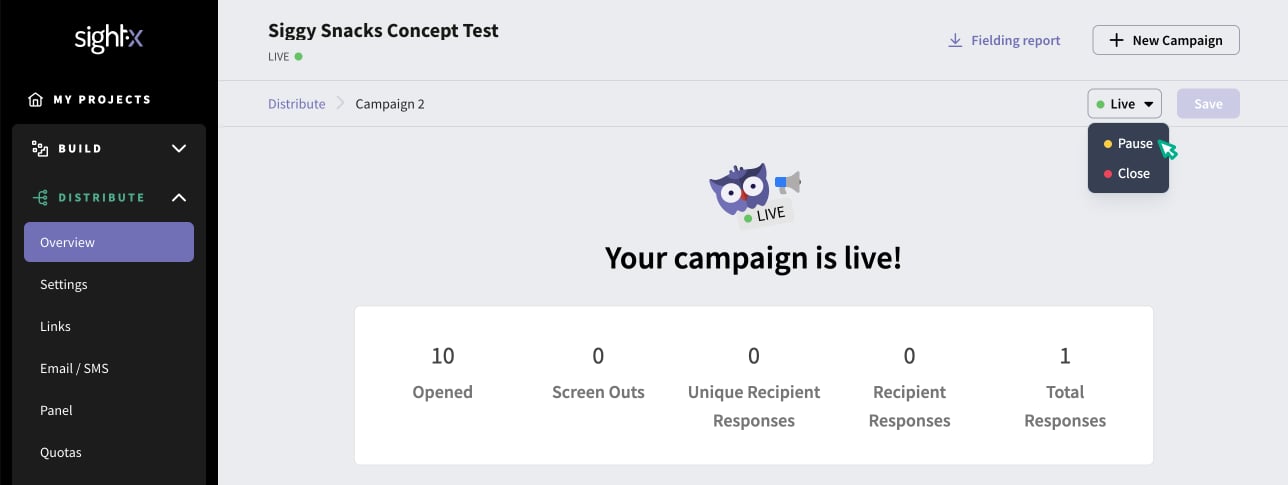
Automated Data Cleaning
On the Responses tab, click on the Clean data button in the right corner of the page to initiate SightX’s automated cleaning system, which scans for interviews with duplicate or incomplete responses, and repeated IP addresses. The system will scan the responses in your project and show a pop-up modal with the results, for example: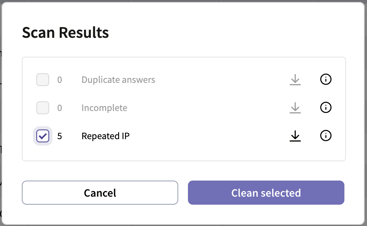
Manual Response Removal
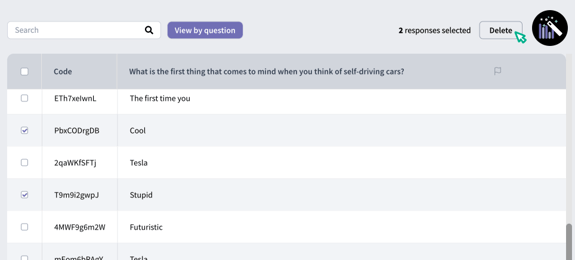
You may also want to manually review and remove responses from your project, in addition to the automated data cleaning that SightX provides. The easiest way to do this is to view the raw question responses right in the platform, and select the ones you wish to delete. On the Responses tab, click the “View by question” button and select the question you want to view the raw responses for. From there, you can review the raw data and select which respondents you want to scrub out. For example, you may want to remove respondents who typed in gibberish or non-sensical answers to an open-response question. Simply select the checkboxes next to the responses you want to remove, and then click the “Delete” button in the center of the page to remove those responses.