
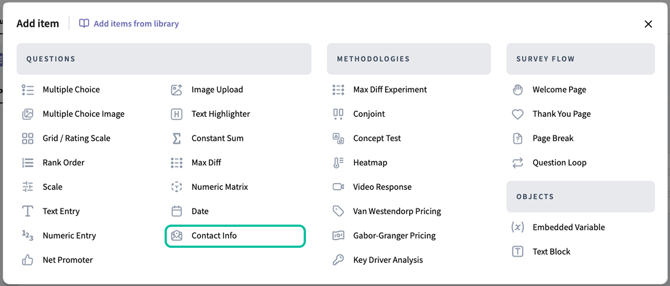
- Add the Contact Info question type to your survey. You’ll need to use this question type to set up the disqualification logic later.
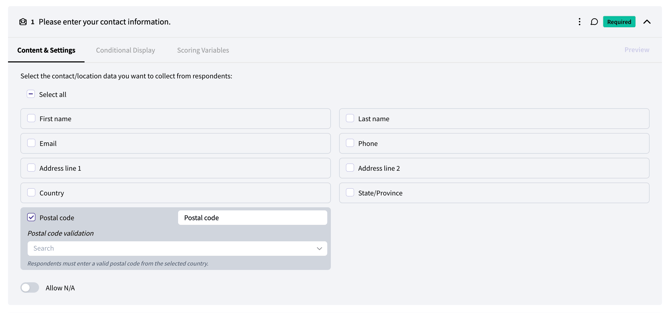
The default label is shown in the text box; you can edit the text to change the field label that respondents will see in the survey. 3. Set postal code validations: you can set up validations so that respondents are required to input a valid postal code from their country. If validations are enabled, respondents who enter a postal code that is not a valid postal code in their country will see an error and not be able to proceed in the survey until they enter a valid code.
- If all survey participants will be from a single country: Select the country to validate postal codes from in the dropdown. If you do not want validation, choose the “Do not validate” option in the list.
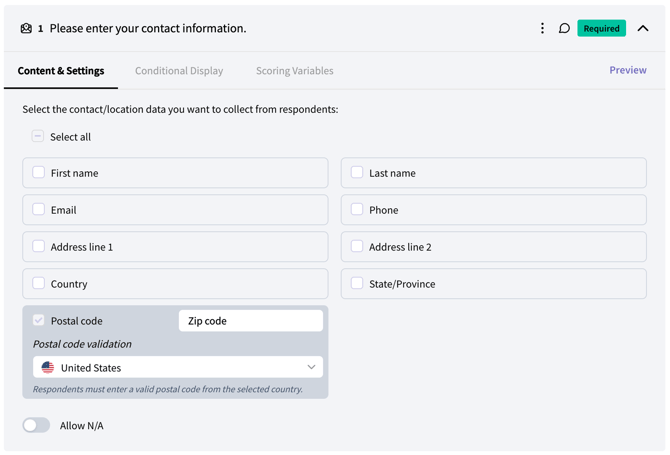
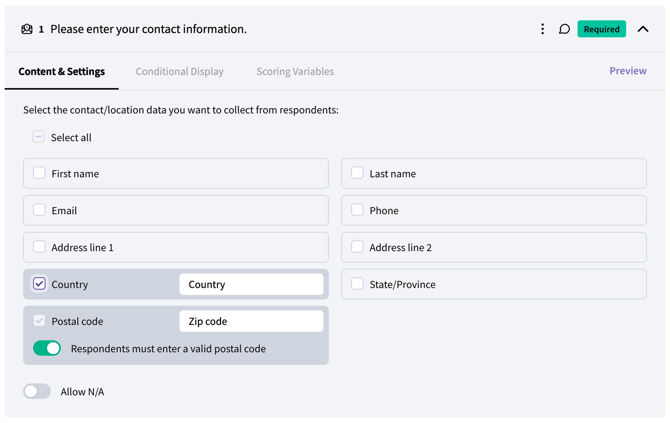
- If respondents will be from more than one country: Select the checkbox next to the “Country” field to show respondents a dropdown to select their country. Postal codes will be validated based on the country chosen. If you do not want validation, toggle the option to OFF.
- Navigate to the Logic page , find the contact info question and click “add logic”.
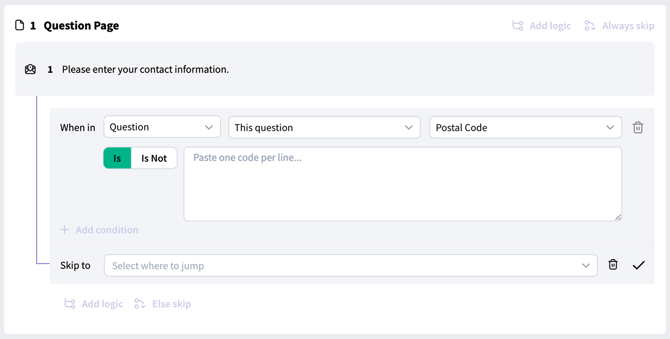
Be sure that the dropdown selections are “Question”, “This question” and “Postal code”. 2. If you have a list of postal codes that should qualify for the survey, choose the “Is Not” logic operator.\
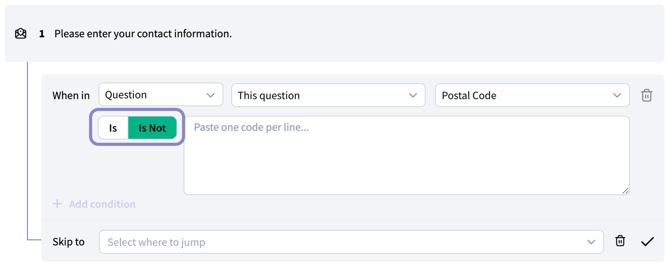
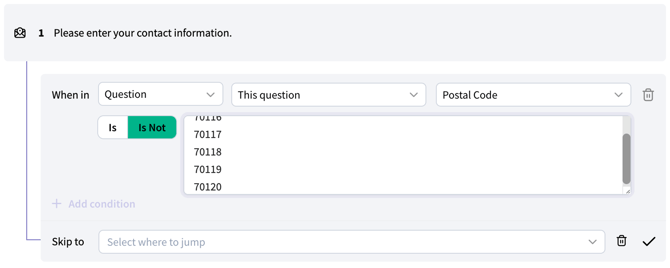
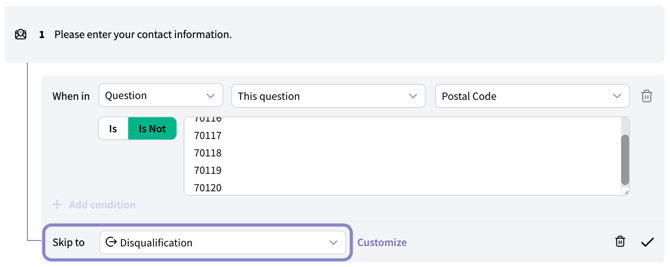
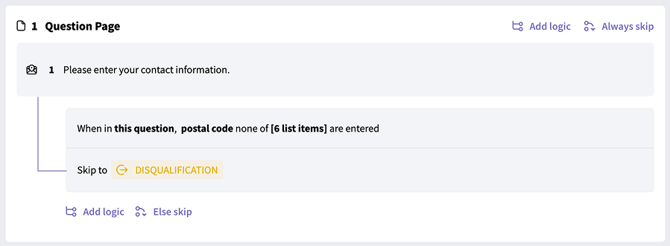
This will ensure that respondents who enter postal codes that aren’t on your list will be disqualified from the survey.