

What are URL variables?
URL variables allow you to collect information (typically demographic profiles) about respondents from their survey entry link. You can then use that information to hide/show questions, create survey logic, set quotas, and analyze your survey results. For example, the survey link https://survey.sightx.io/1234567890? AGE=38&GENDER=2 includes two URL variables for the respondent’s age and gender. The variable names are “AGE” and “GENDER”; the text before the equal signs. The variable value for “AGE” is 38, and the value for “GENDER” is 2. In this case, this indicates that the respondent’s age is the numeric value 38 (in years). The gender value of 2 is a code, that corresponds with the value “female”.How to create a URL variable
First, you’ll need to create a question in the survey to store the variable data. There are three types of data that can be stored in a URL variable: 1. Categorical data: each respondent is assigned to a defined category or group. These variables contain the same type of data as a multiple choice survey question. Common examples are gender, employment status, education level, etc. 2. Numeric data: each respondent is assigned a numeric value. These variables contain the same type of data as a numeric entry question. The most common example is age (in years). 3. Unique/uncategorized data: each respondent is assigned a text string exactly as it is sent in the URL. These variables contain the same type of data as an open text input question. Typically these are used for variables where there are many possible values and/or values that are unique to each respondent.Adding a Categorical Variable
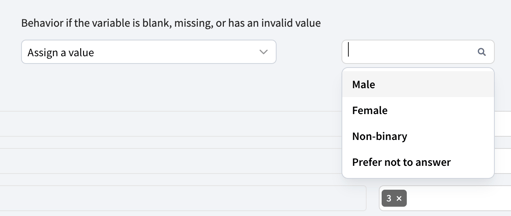
For URL variables that will assign each respondent a code that corresponds to a category label, first add a multiple choice question to your survey.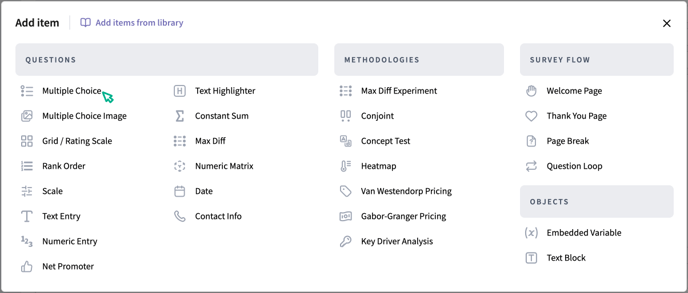
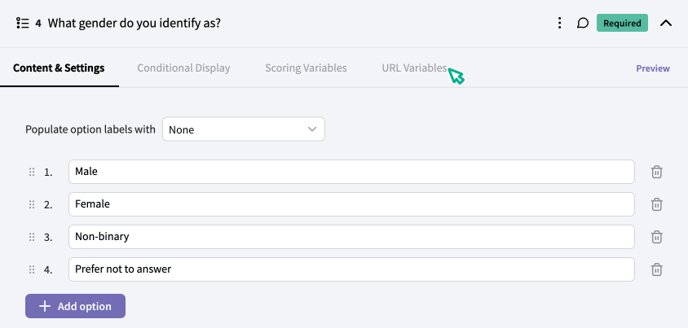
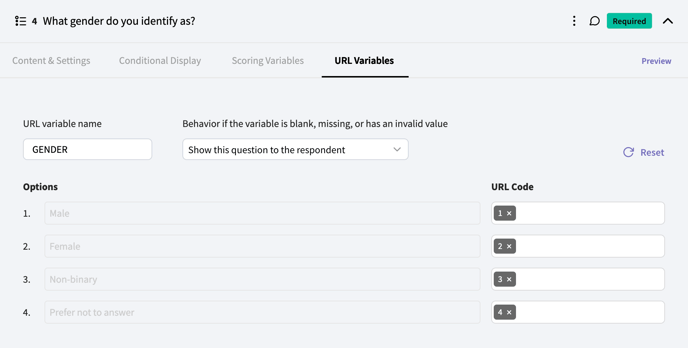
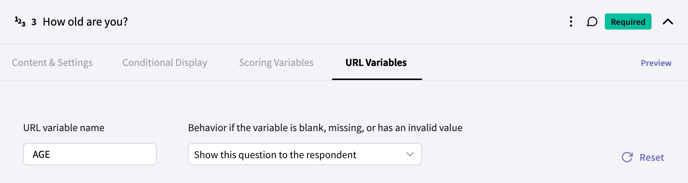
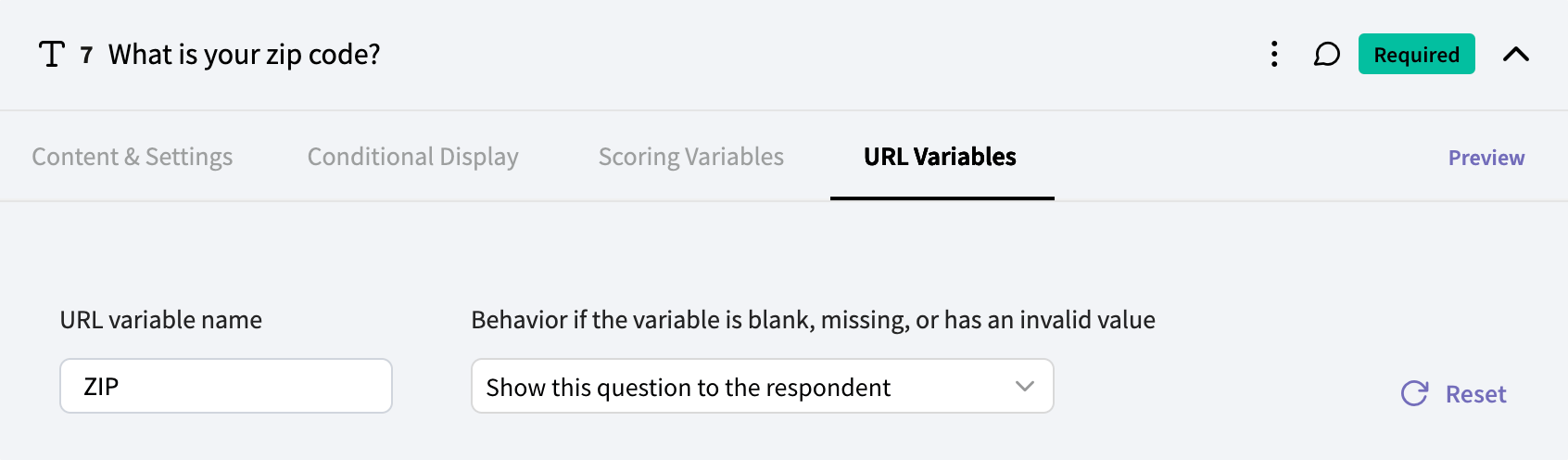
For the “URL variable name”, input the name exactly as it will appear in the URL survey link. Recall that the variable name is the text before the equal sign:
https://survey.sightx.io/1234567890? AGE=38&GENDER=2
The variable names in the example above are “AGE” and “GENDER”. These names are typically provided by the panel, community, or database that you’re sourcing respondents from, and can be any text string without spaces.
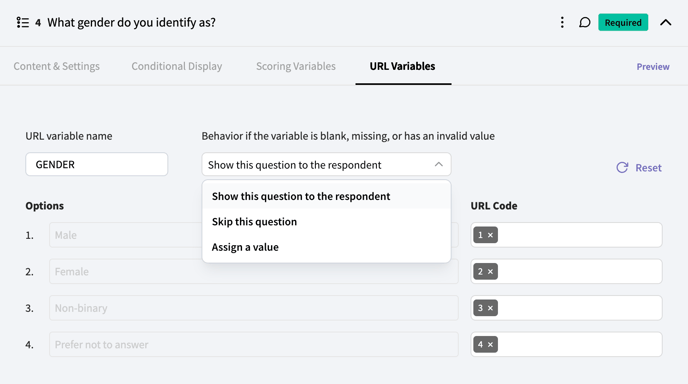
Adding a Numeric Variable
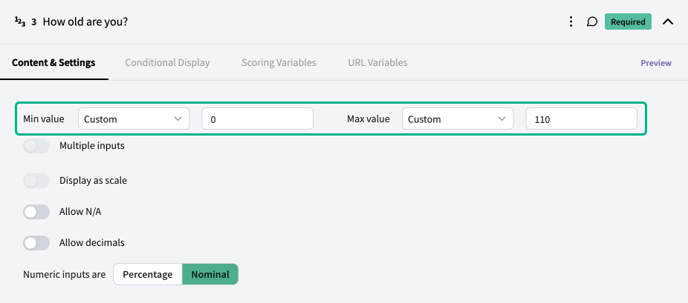
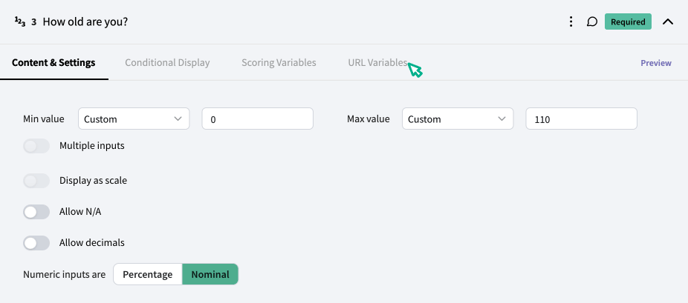
For URL variables that will contain a numeric value for each respondent, start by adding a numeric entry question to your survey.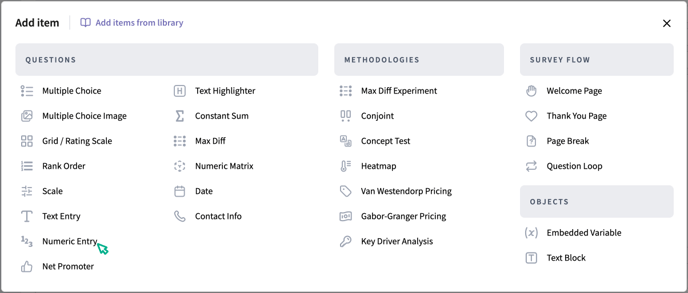
Adding a Text Variable
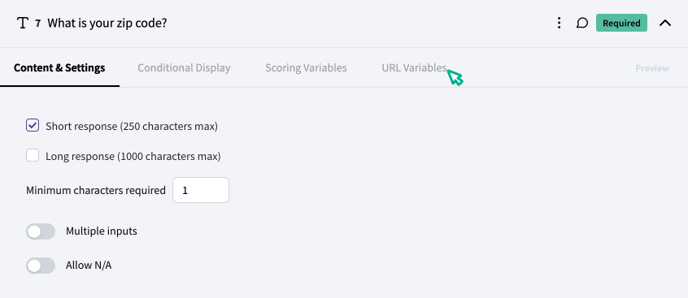
For URL variables that will contain uncategorized text for each respondent, start by adding a text entry question to your survey.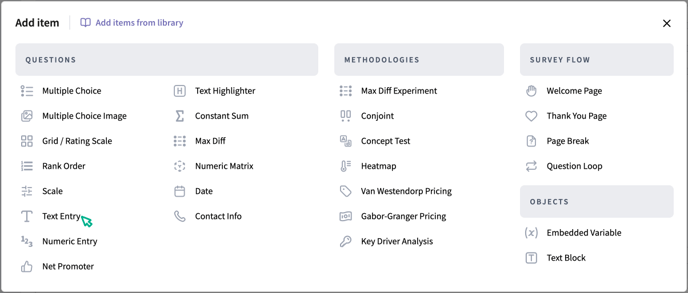
Using URL variables in logic or conditional display
Because URL variables are set up inside of a survey question, you can use them for any purpose that you would use a typical survey question for. To hide/show something in the survey based on the URL variable, set logic or conditional display on the question that contains the URL variable.URL variable settings in survey links
When you’re ready to distribute your survey to respondents, go to the Links tab in the Distribute section as you normally would. Here, you’ll see listed the URL variables that you set up in the build section. Be sure to include the URL variables in the links you send to your survey respondents. The name in the URL (before the equals sign) should be the exact same including case sensitivity as the one that you gave each variable in the build section.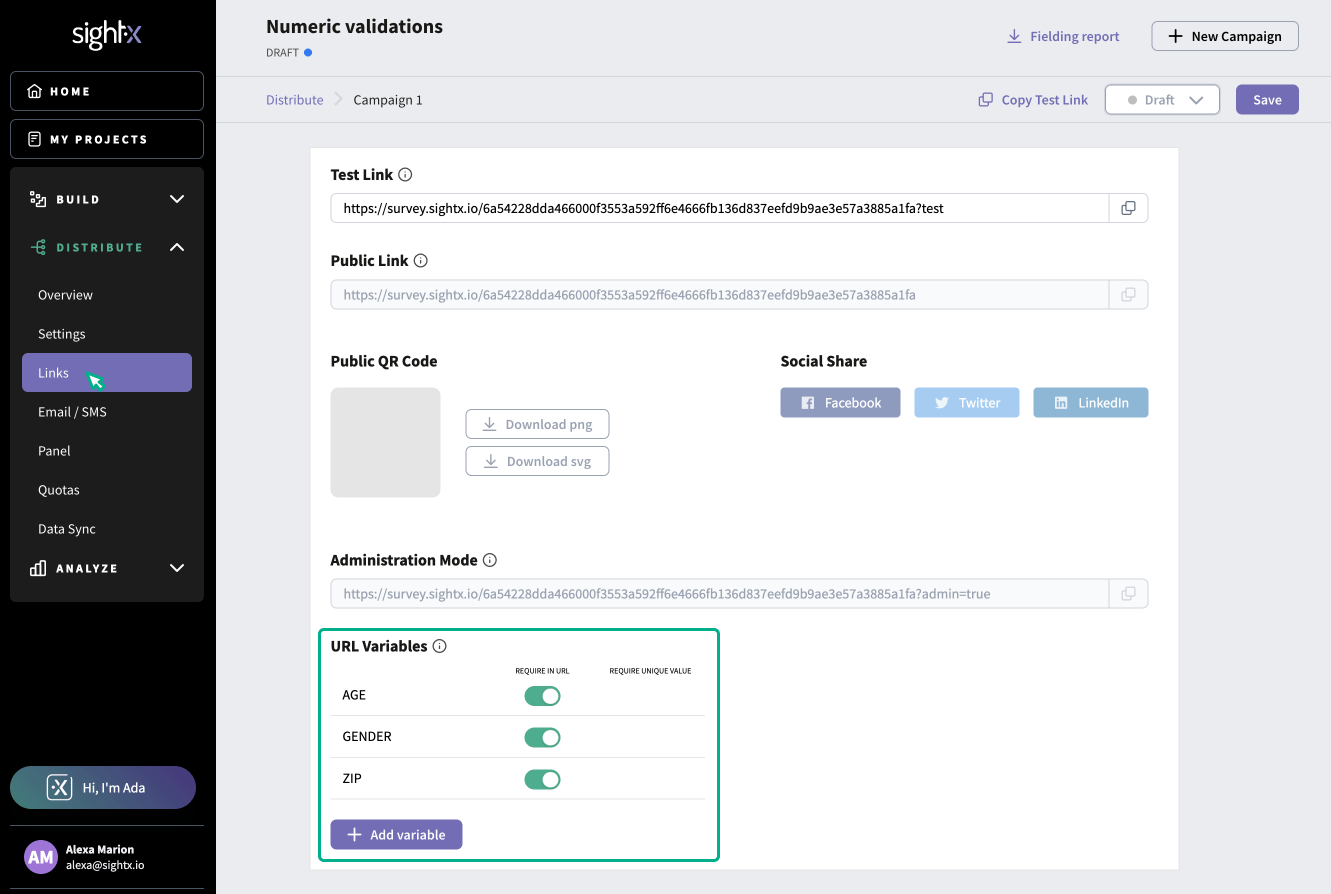
Using URL variables in data analysis
Because URL variables are set up inside of a question, they can be used throughout your data analysis as you would any other survey question. The information will be included in the raw data export, and the questions containing URL variables can be used to filter data, create crosstabs, etc.URL variables set up inside text questions cannot be used for filters, etc in SightX, because text questions are limited in the type of analysis that can be done on them.