What’s on this page:
- Creating a Project
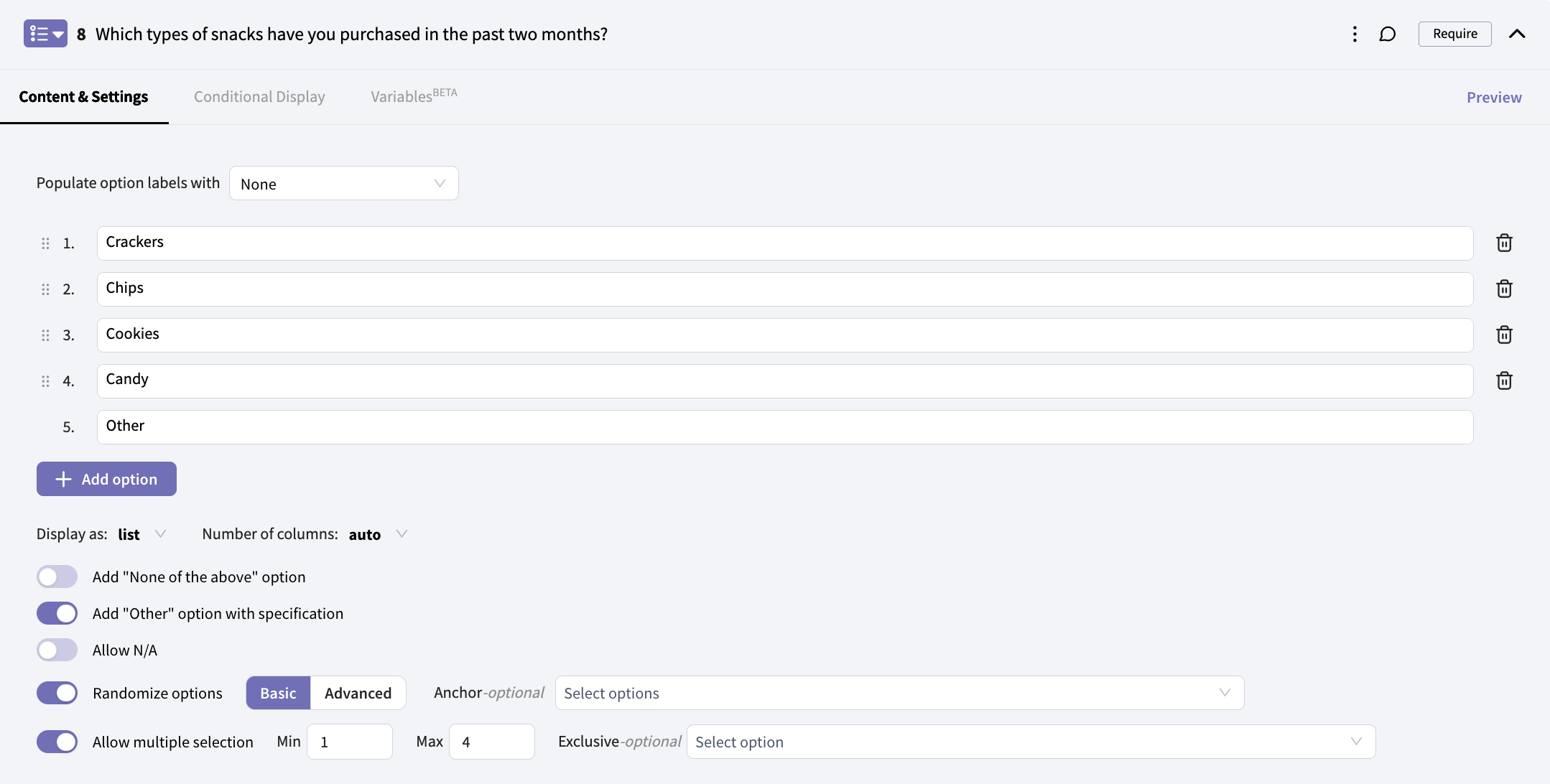
- Adding Questions to Your Survey
- Adding Pages to Your Survey
- Previewing Your Survey
- Adding Logic to Your Survey
- Adding Design Elements to Your Survey
- Translating Your Survey into Multiple Languages
- Survey Options
Creating a Project
When you log into SightX, you’ll land on the Home page. To create a new project, select from Start with a prompt , Browse survey templates , or Start from scratch. Once you have created your new project, the platform will automatically direct you to the survey Build module within the project to begin building your survey.Adding Questions to Your Survey
When you create a new project, the platform will navigate you to the Create page within the survey Build module. From here, click ”+ Add Item” in the center of the page to open the menu of survey questions, experiments, and pages that you can add to your survey.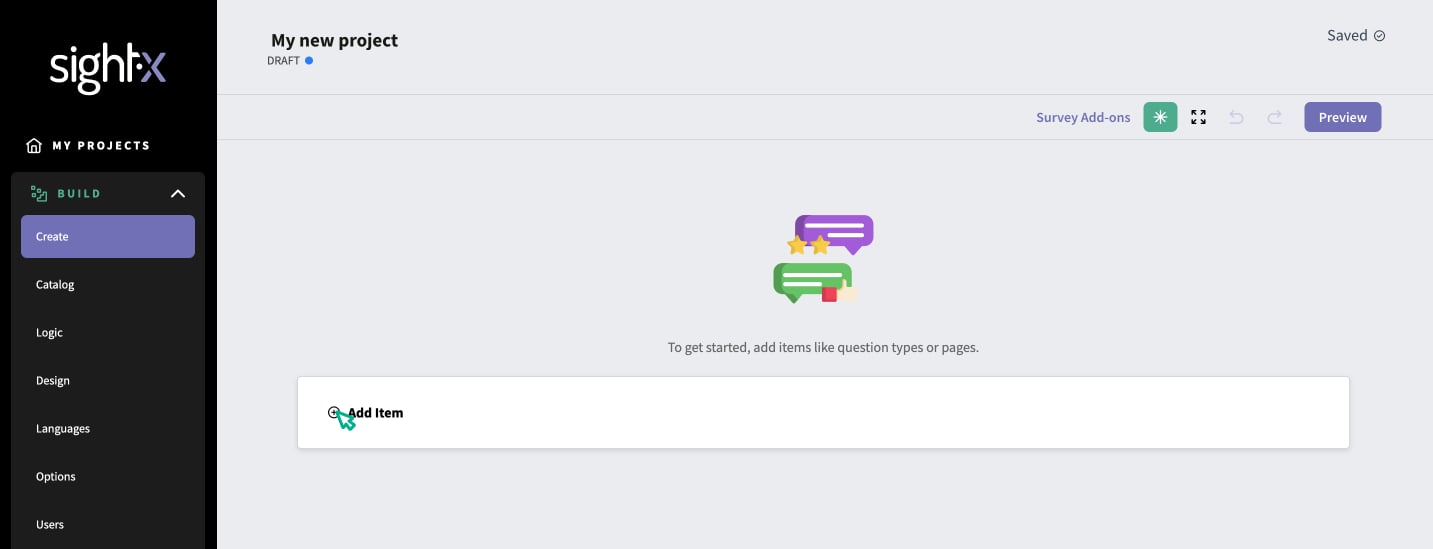
Adding Pages to Your Survey
You may want to organize your survey into multiple pages for respondents to navigate through. You can add question pages by clicking ”+ Add Item”, and selecting one of Welcome Page , Thank You Page , or Question Page. To reorder an element within a page or move it to another page, hover over the element and click the double arrow icon that appears to the left of the element.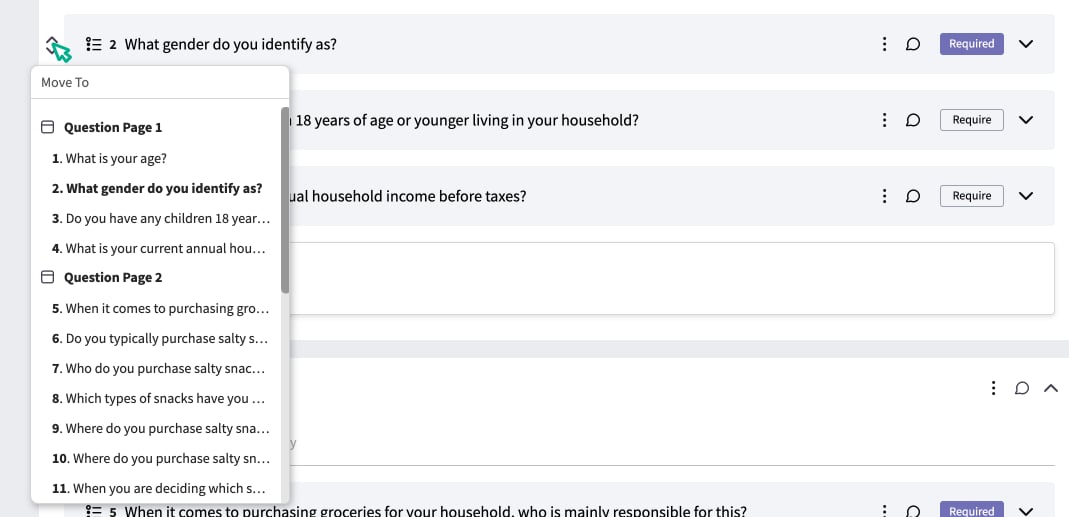
Previewing Your Survey
To preview your survey, click the “Preview” button in the upper right corner of any page in the Build section. To preview a single question, click the “Preview” button in the upper right corner of the question.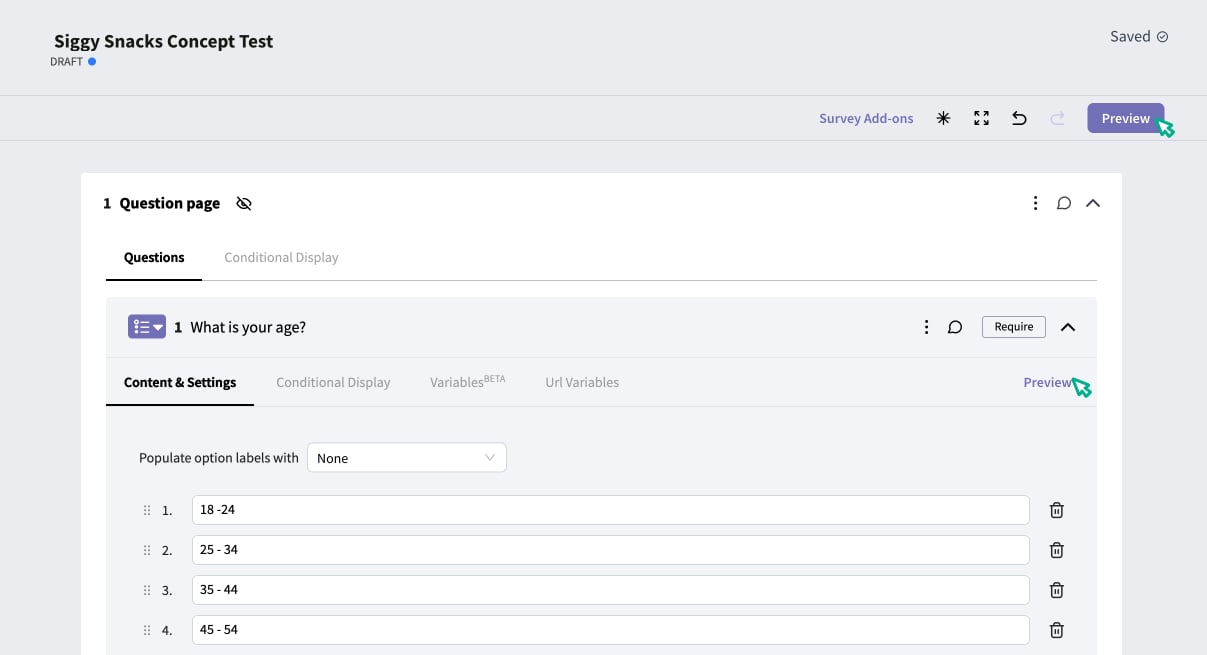
Adding Logic to Your Survey
You may want to disqualify respondents from your survey based on their answers to screening questions, or to direct respondents on different survey paths based on their answers. To do this, you’ll need to add survey logic. To add logic, navigate to the Logic page in the left-hand page navigation menu. To add logic to a question, hover over the question on the logic page and select “Add logic”. From there, you can build out your logic conditions.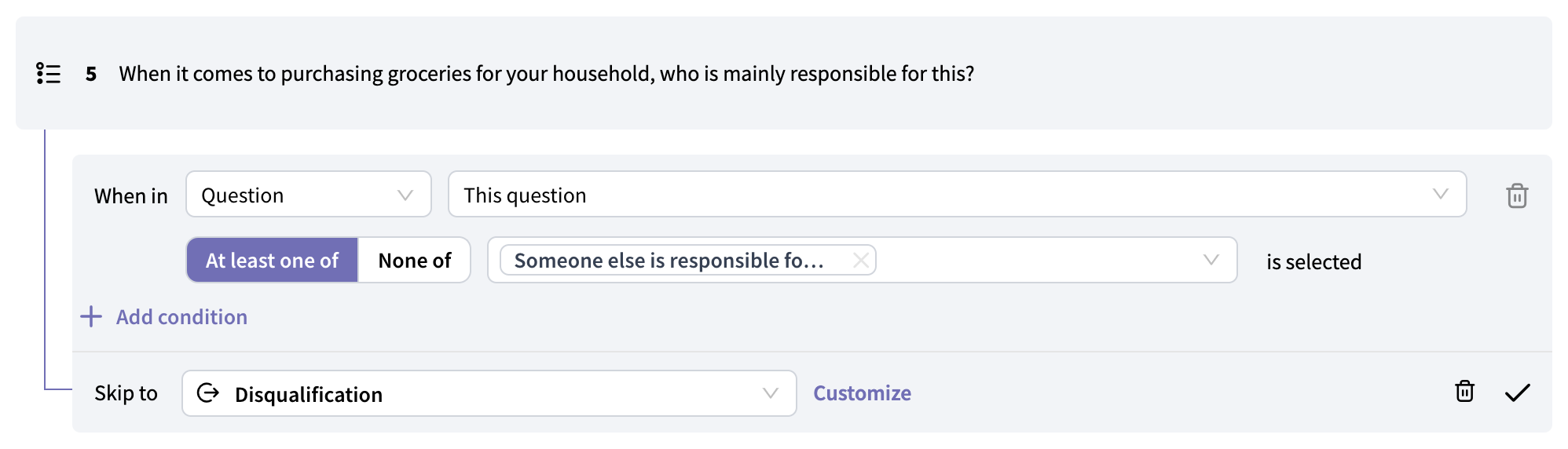
Adding Design Elements to Your Survey
In SightX, you can customize the look and feel of your survey based on your preferences or brand guidelines. Navigate to the Design page using the left navigation menu, and you’ll see several configuration options for your survey like adding a logo, changing the color of the survey backgrounds, buttons, and text, and changing the fonts used in the survey.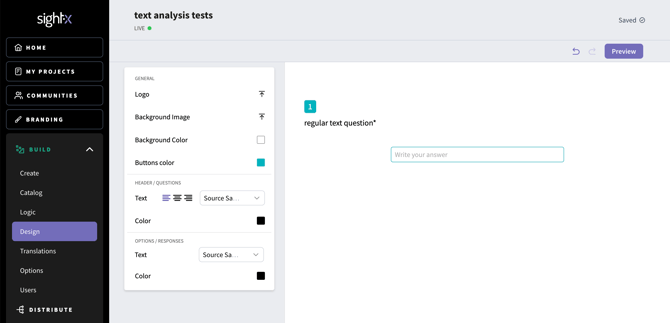
Translating Your Survey into Multiple Languages
SightX is integrated with Google Translate to instantly translate your survey and store multiple translations per survey. Click on the Languages page in the left-hand navigation menu to begin.Survey Options
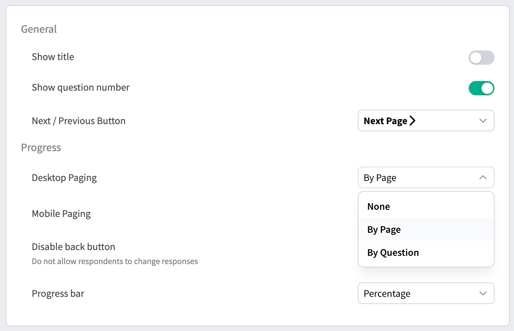
To view and edit the display options for your survey, click the Options page in the left-hand navigation menu. You’ll see several display configurations that you can edit, such as the button and progress bar styling, survey pagination settings, and navigation settings.Survey Progress Options