- What is a Concept Test?
- When to Use a Concept Test
- Setting Up a Concept Test in SightX
- Adding Concepts
- Configuring Concepts
- Monadic vs Sequential Concept Testing
- Adding Concept Test Questions
- Showing or Hiding Concepts
- Creating Concept-specific Questions
- Setting Quotas on Concepts
- Assigning Quotas to Concepts
- Monadic Design
- Sequential Design
- Creating Even Demographic Distribution Within Each Concept
- Assigning Quotas to Concepts
- Analyzing Data from a Concept Test
- Concept Test Dashboard
- Using Significance Testing in Concept Tests
- Concept Test Results in Data Tables
- Concept Test Dashboard
What is a Concept Test?
A concept test - also known as an A/B test - is a survey technique where different variations of the same idea, or “concept”, are shown to respondents to gather data on how respondents’ opinions and behaviors differ across the concepts. Most often, the concepts are images, phrases, or videos, but they can also be webpages, audio, or story boards. After the concept is shown, respondents are asked a series of questions based on the concept they saw. After, responses to the concept test questions can be compared to evaluate differences between the concepts.When to Use a Concept Test?
Concept tests are very useful when you have multiple versions of a stimuli and you need data to understand which version you should deploy. Commonly, the tests are used to evaluate different versions of ad copy, ad images, or product designs to learn more about how participants react to different versions, and determine which one should ultimately be executed on.Setting Up a Concept Test in SightX
On the Create tab in the survey build, click to open the “+Add item” menu, and select “Concept Test”.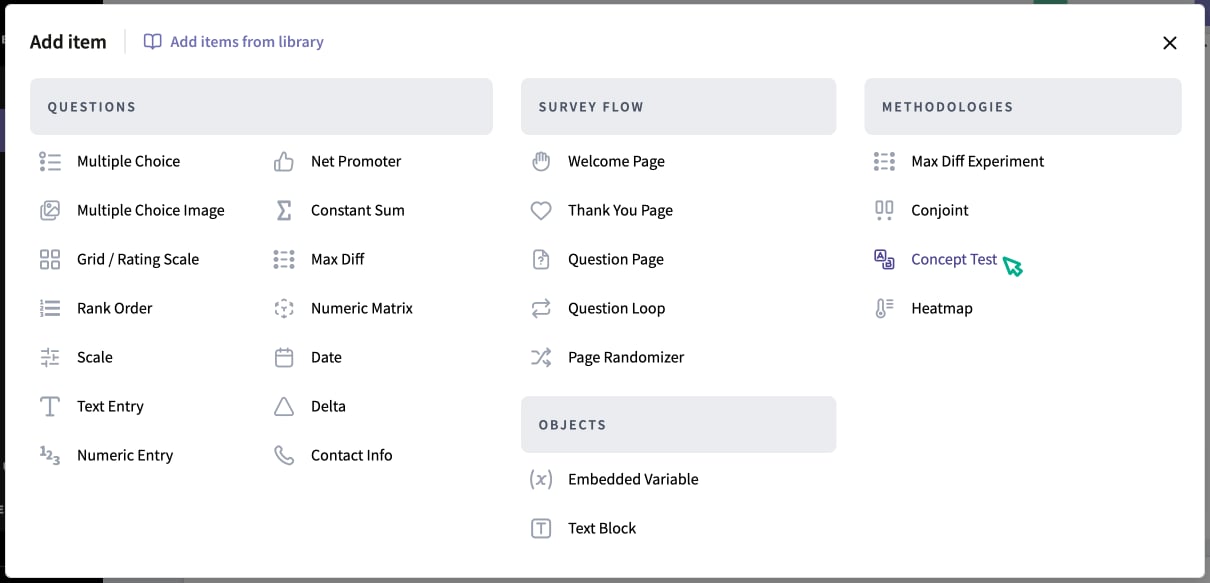
Adding Concepts
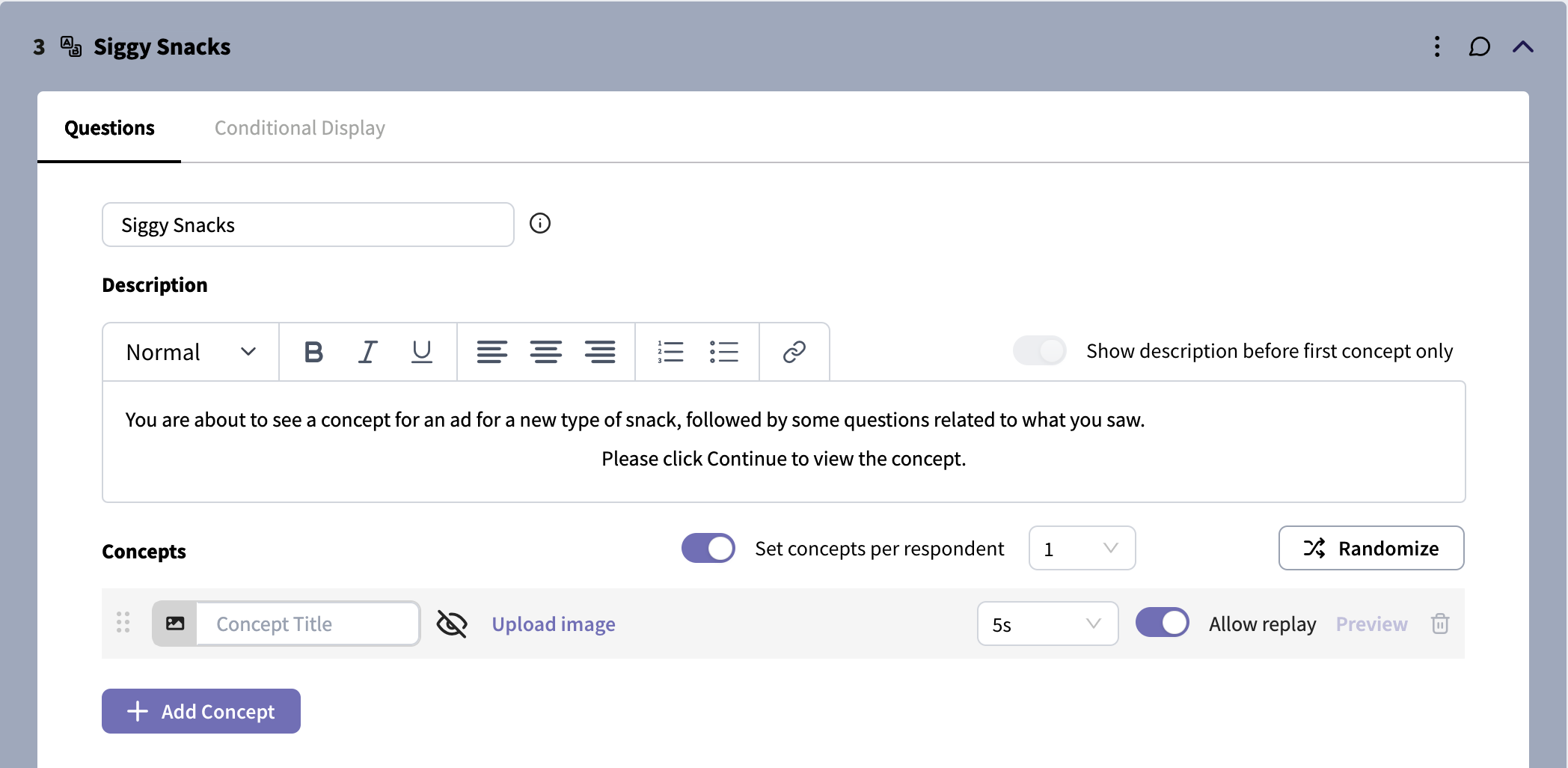
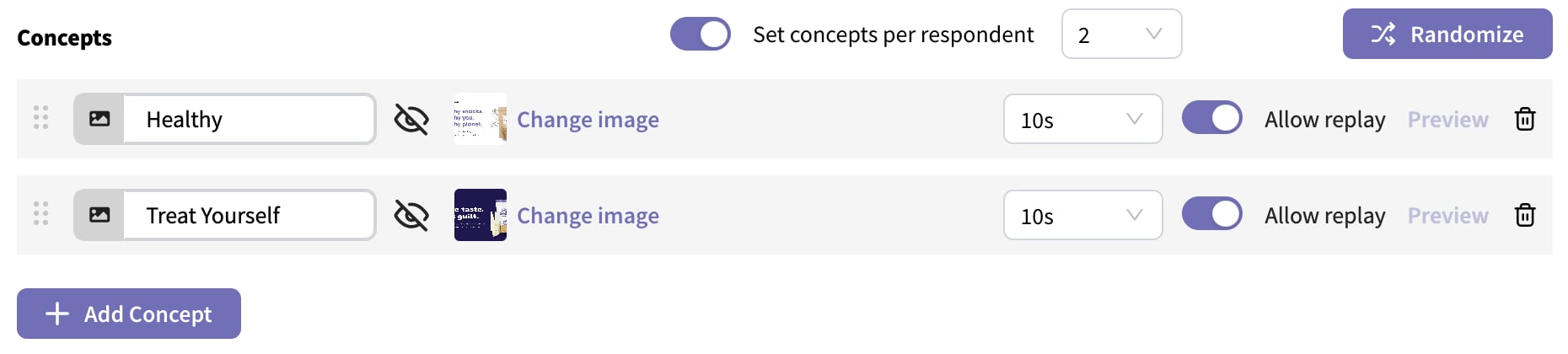
SightX allows you to upload several types of media as concepts. Image: An uploaded .jpg, .jpeg, .png, .gif file with maximum size 5mb External Webpage Link: A link to a public webpage YouTube Link: A link to a publicly available YouTube video (does not need to be searchable on YouTube) Audio: An uploaded .mp3 file with maximum size 10 mb Text: Allows you to present a text-only concept, such as an ad message or statement. To add the concepts, click the “+Add Concept” button and select the type of concept you wish to add. To change the type of media once you’ve added the concept, click on the media type logo and select a different option from the dropdown.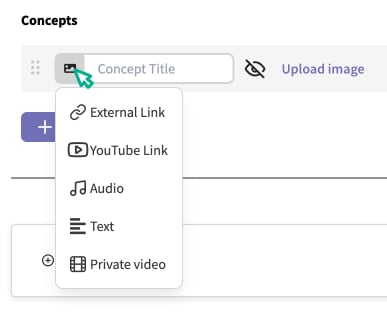
Configuring Concepts
Monadic vs Sequential Concept Testing In a monadic test, each respondent sees only one concept, while in a sequential test, each respondent sees at least two concepts. SightX defaults to sequential testing, where all respondents will see all concepts. To limit the number of concepts each respondent sees, toggle on the Set concepts per respondent feature, and use the dropdown to select how many concepts each respondent should see.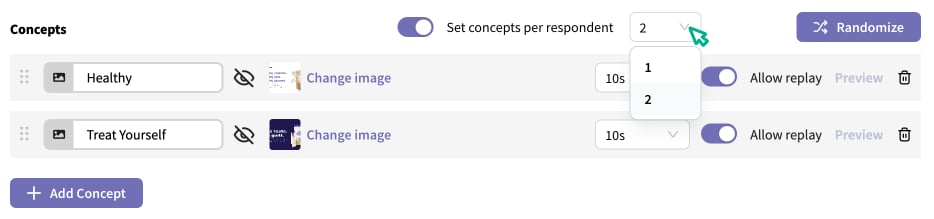
Adding Concept Test Questions
After the respondents view each concept, they’ll answer a series of questions about the concept. To configure these, click the “+Add Item” button within the concept test block and select the type of question you want to add. Configure the question as you normally would in a survey.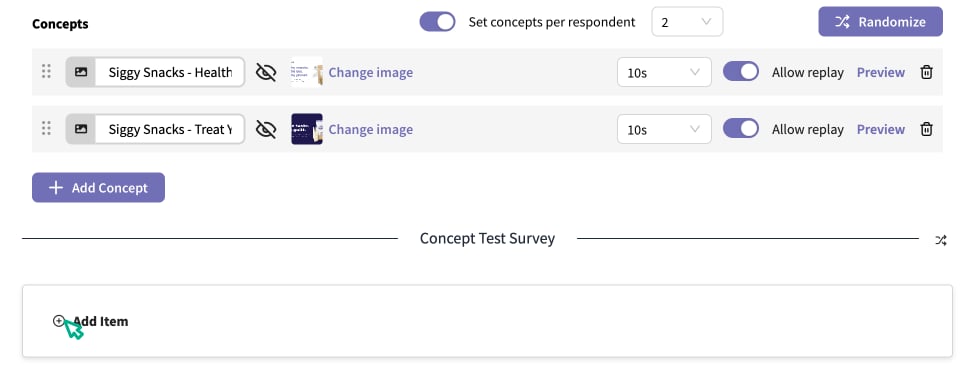
Showing or Hiding Concepts
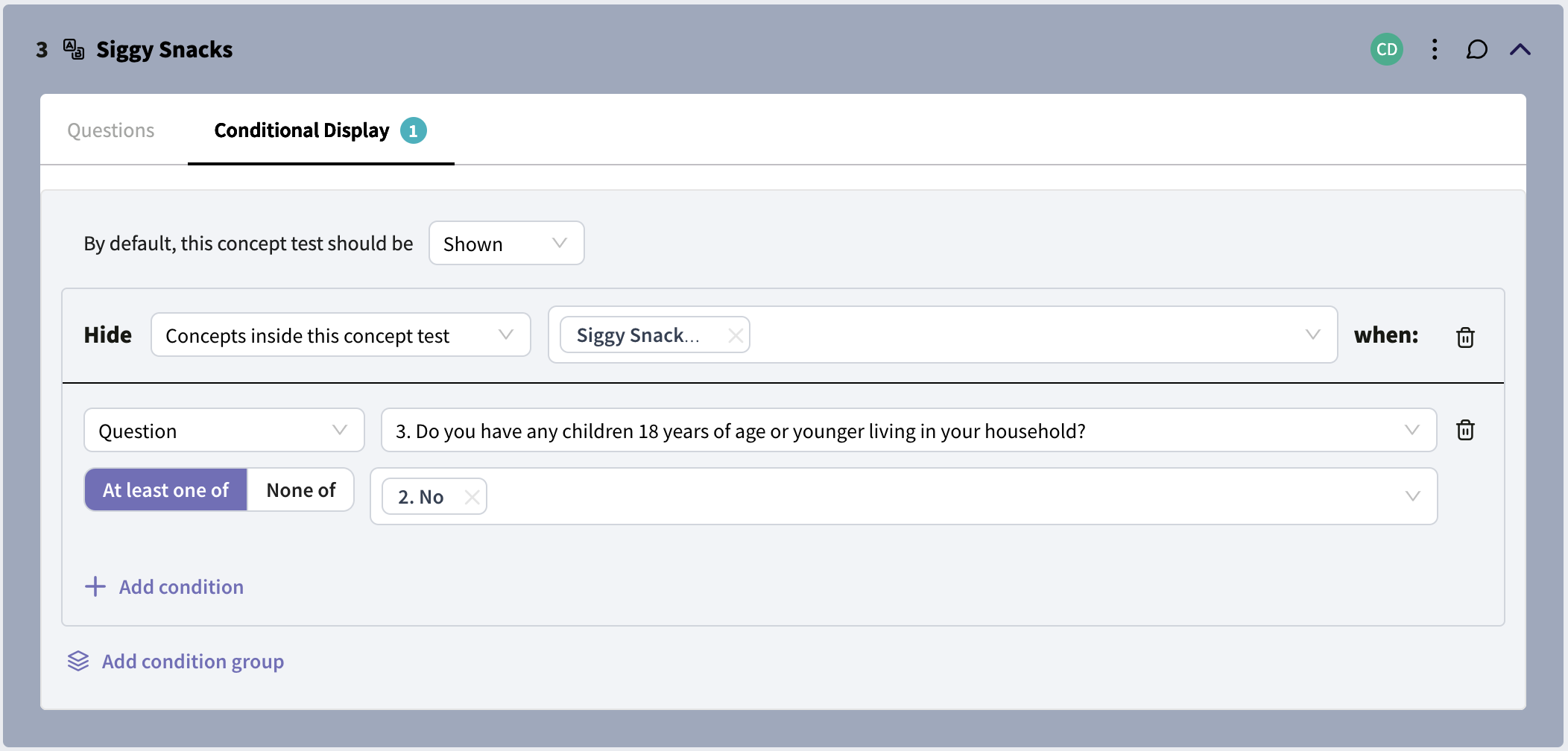
You can show or hide concepts to certain respondents using conditional display logic. At the top of the concept test block, navigate to the Conditional Display tab and add a condition block. In the dropdown, you can select to show/hide the entire test or select the option for “A single concept”. Then, select the concept you want to show or hide.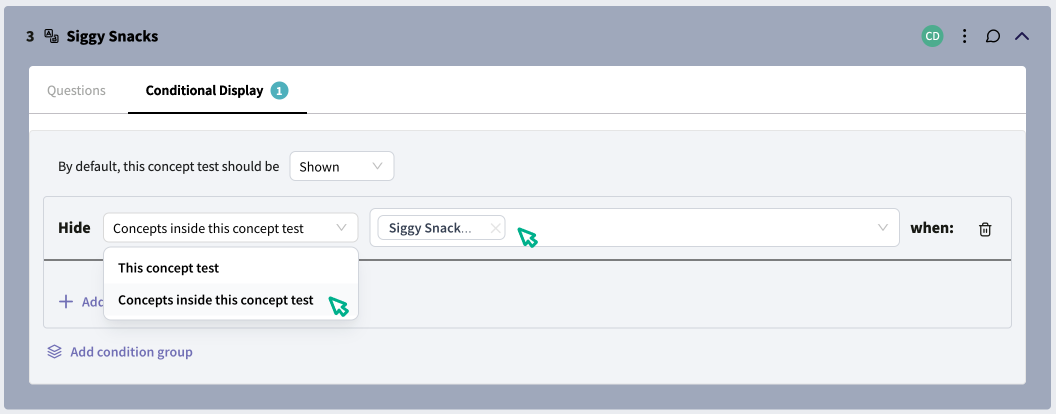
Creating Concept-specific Questions
If you want a question within the concept test to only be asked when a certain concept is shown, you can set that up using conditional display on the question. Simply navigate to the question and select the Conditional Display tab, and in the condition block in the first dropdown, select “Concept” to set conditions based on whether or not that concept is being shown.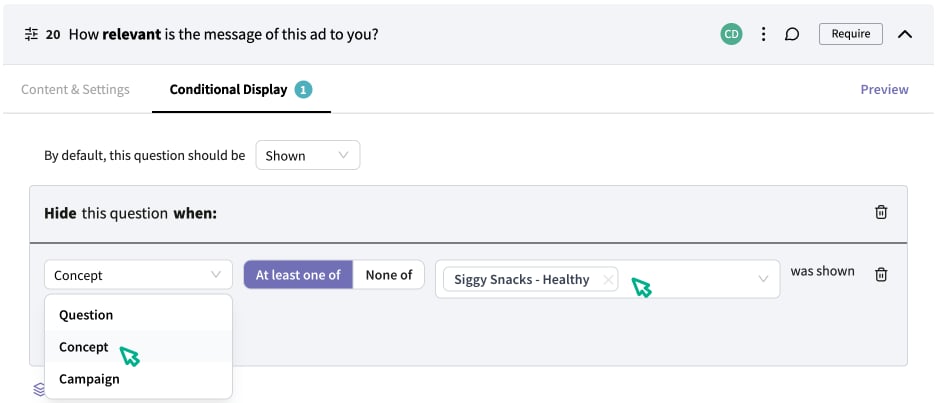
Setting Quotas on Concepts
Assigning Quotas to Concepts
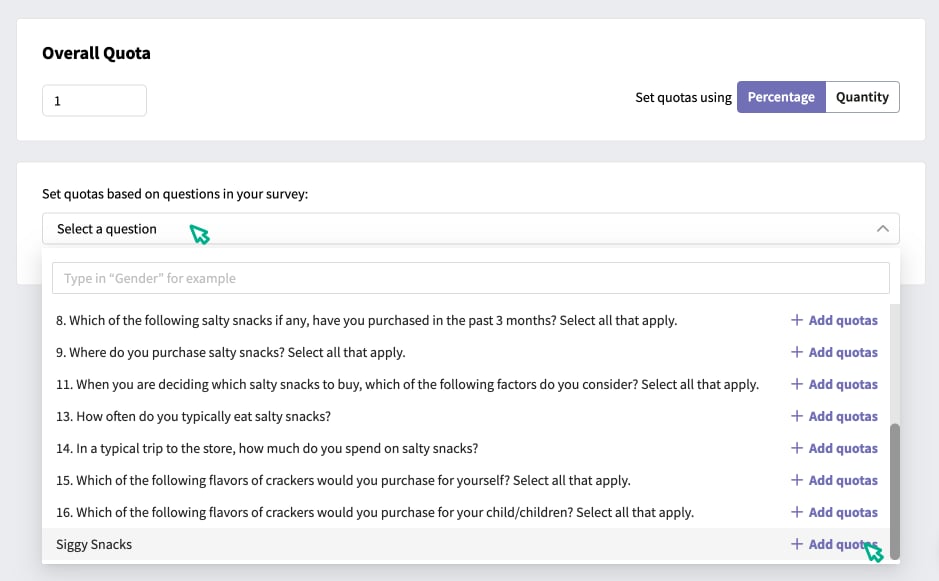
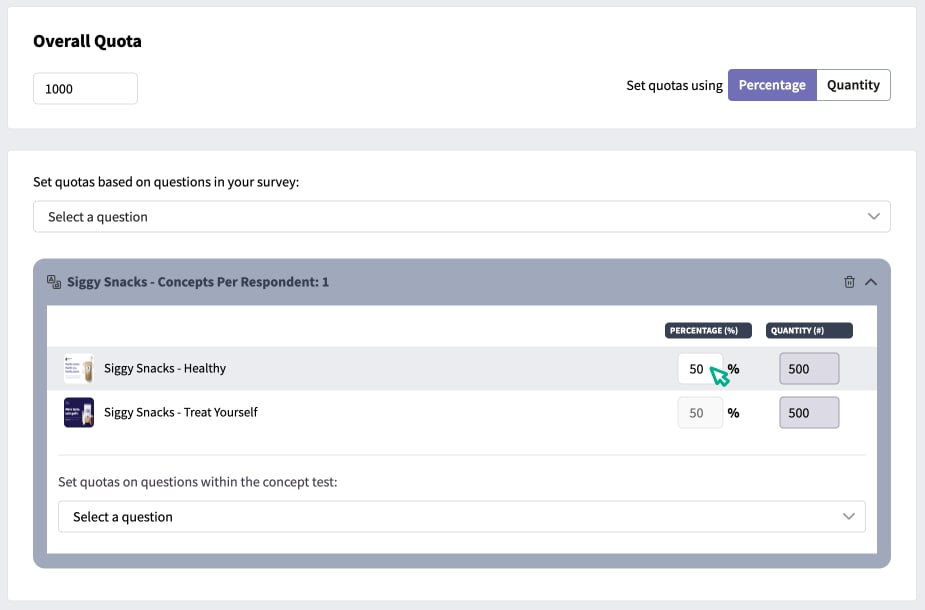
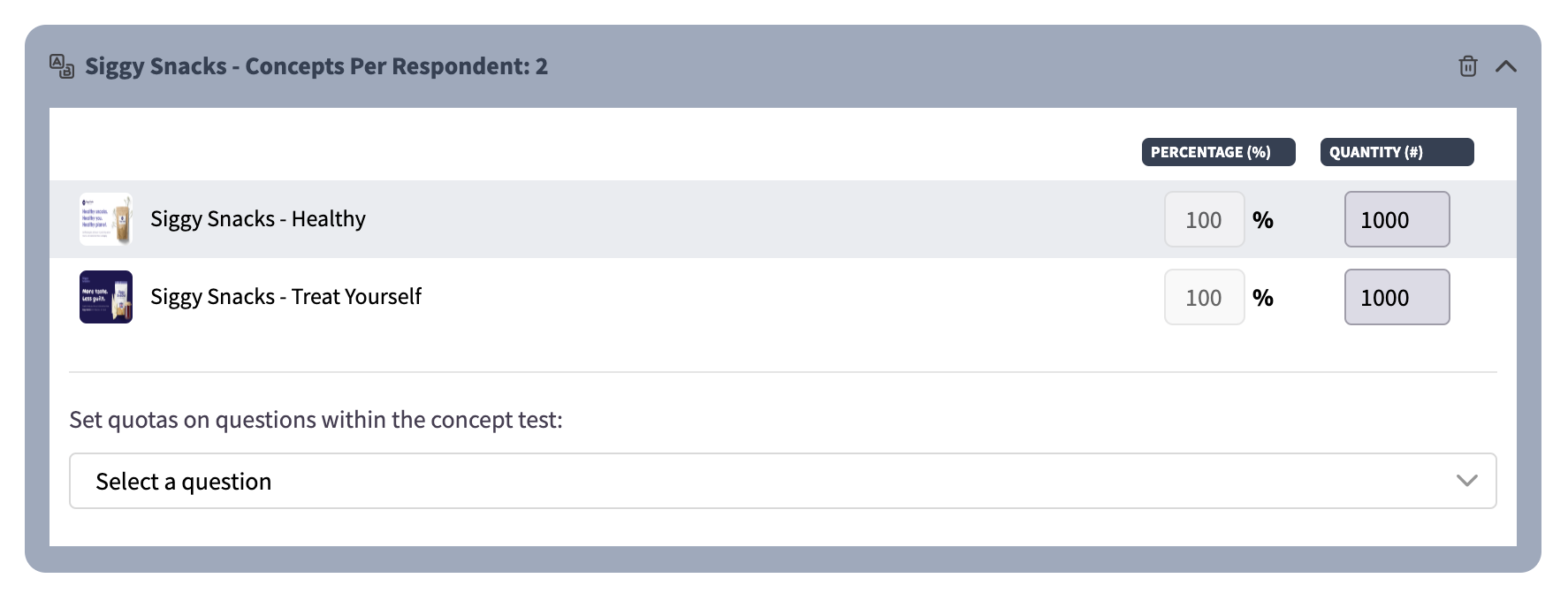
Monadic Design If you’re only showing one concept per respondent, you can set specific quotas on how many respondents are exposed to each concept. Navigate to the Distribute section, and create a campaign if you have not done so already. Then, navigate to the Quotas tab using the left side navigation menu. Set the “Overall quota” at the top of the page to the total number of respondents you want for the campaign.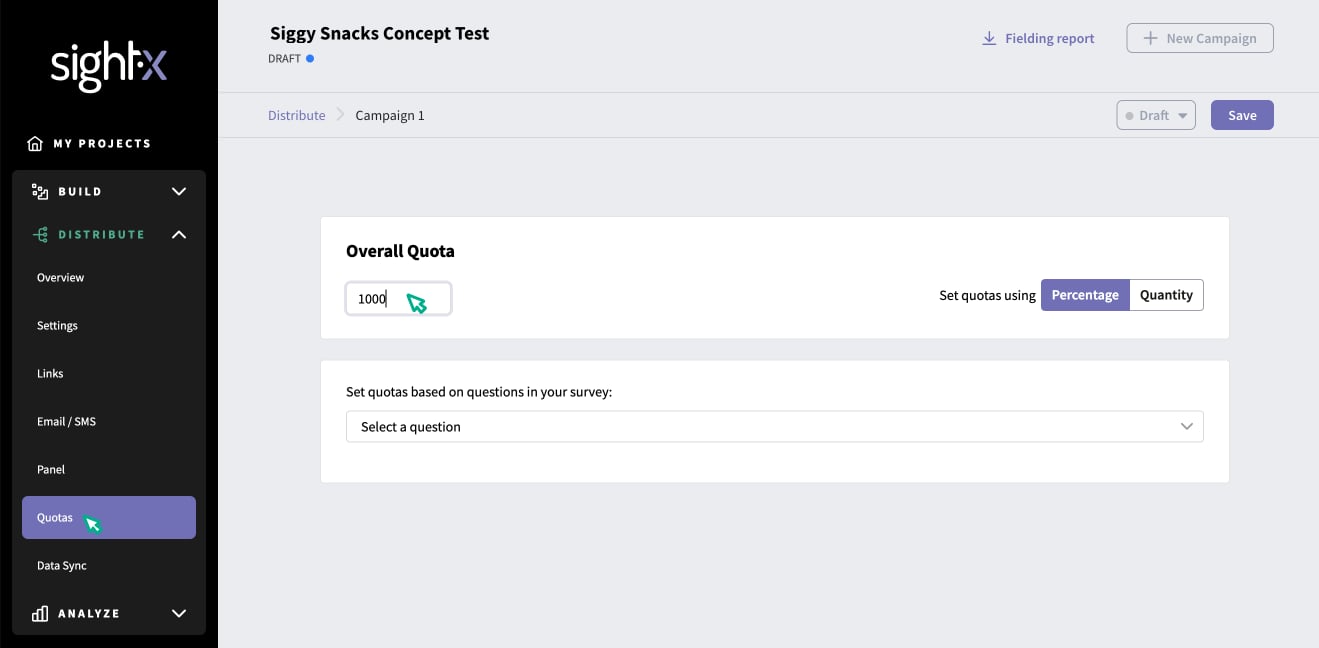
Creating Even Demographic Distribution Within Each Concept
If you’re balancing the sample demographics (age, gender, etc.) in your survey, and you also want the respondents who are exposed to each concept to have balanced demographics, you should create a campaign for each cell. A cell is a unique group of respondents. For example, if you have four concepts, and you’re using monadic design , and you want each concept to be exposed to 200 respondents with census age and gender balancing, you would have four cells each with 200 respondents. If you have four concepts, and you’re using sequential design showing two concepts to each respondent, and you want each concept to be exposed to 200 respondents with census age and gender balancing, you would have two cells each with 200 respondents. Using the example of a monadic concept test with four concepts, where you want each concept to be exposed to 200 census balanced respondents, you would create four campaigns in the distribute section - one for each concept. Within each campaign, set the Age and Gender quotas as you normally would, to achieve the balance you require within the cell. Then, set quotas on the concepts within the concept test so that only one of the concepts is shown to that cell, by setting 100% on one of the concepts and 0% in the rest. This setup allows each cell to be census balanced, and then that cell only shown one of the concepts, so that the required demographic balancing can be achieved within each concept.Analyzing Data from a Concept Test
Concept Test Dashboard
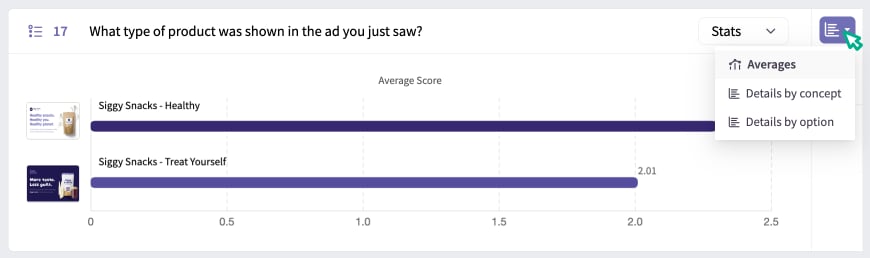
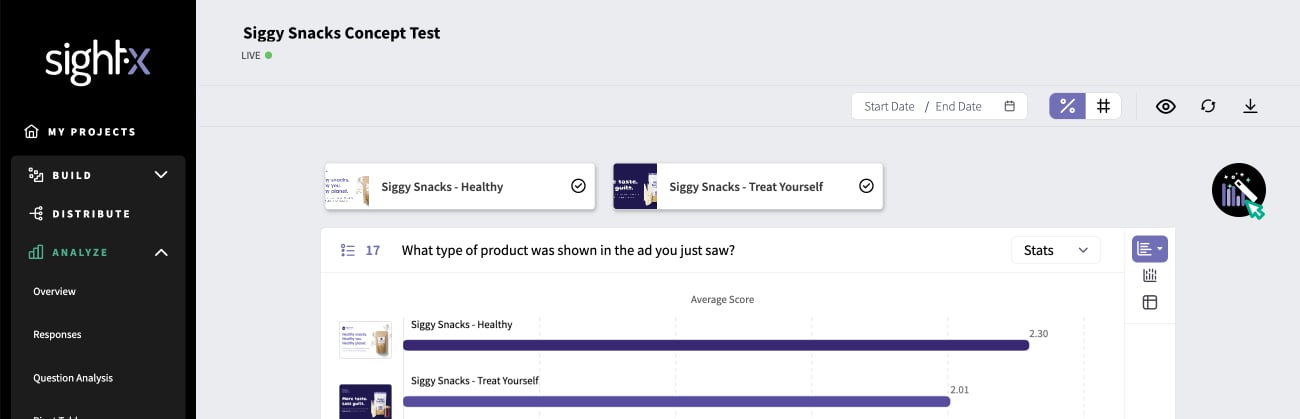
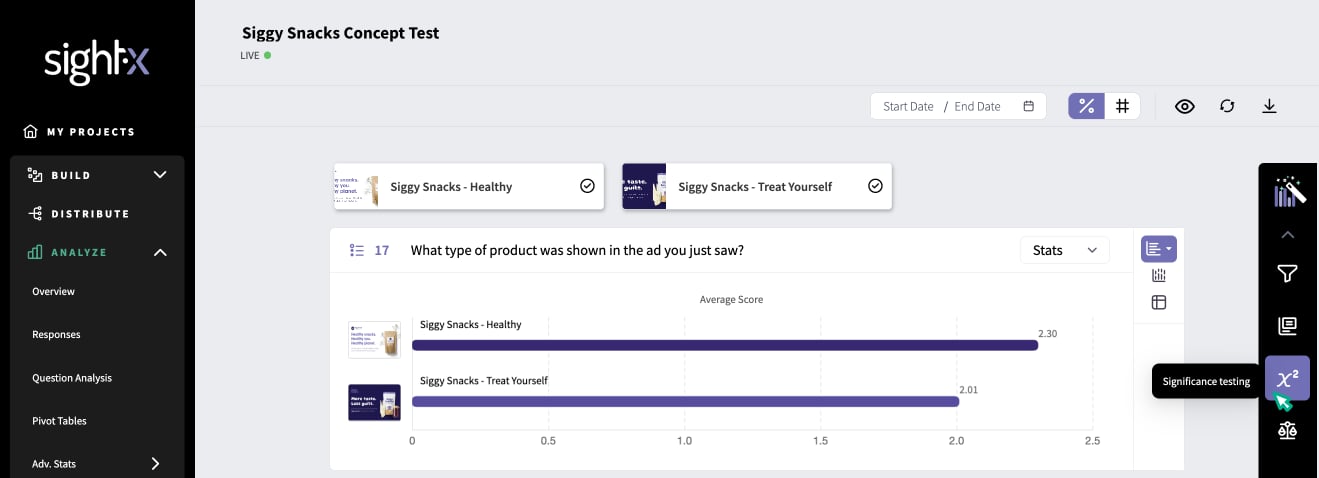
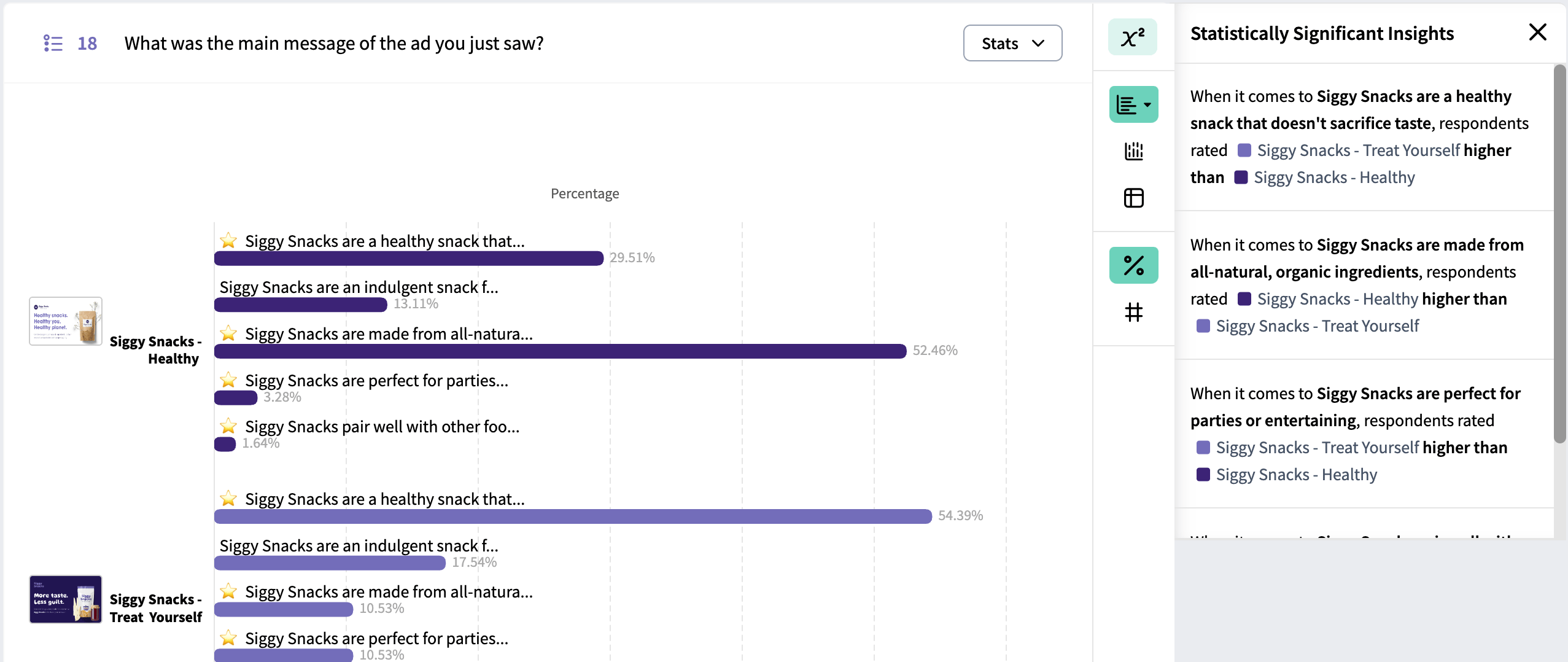
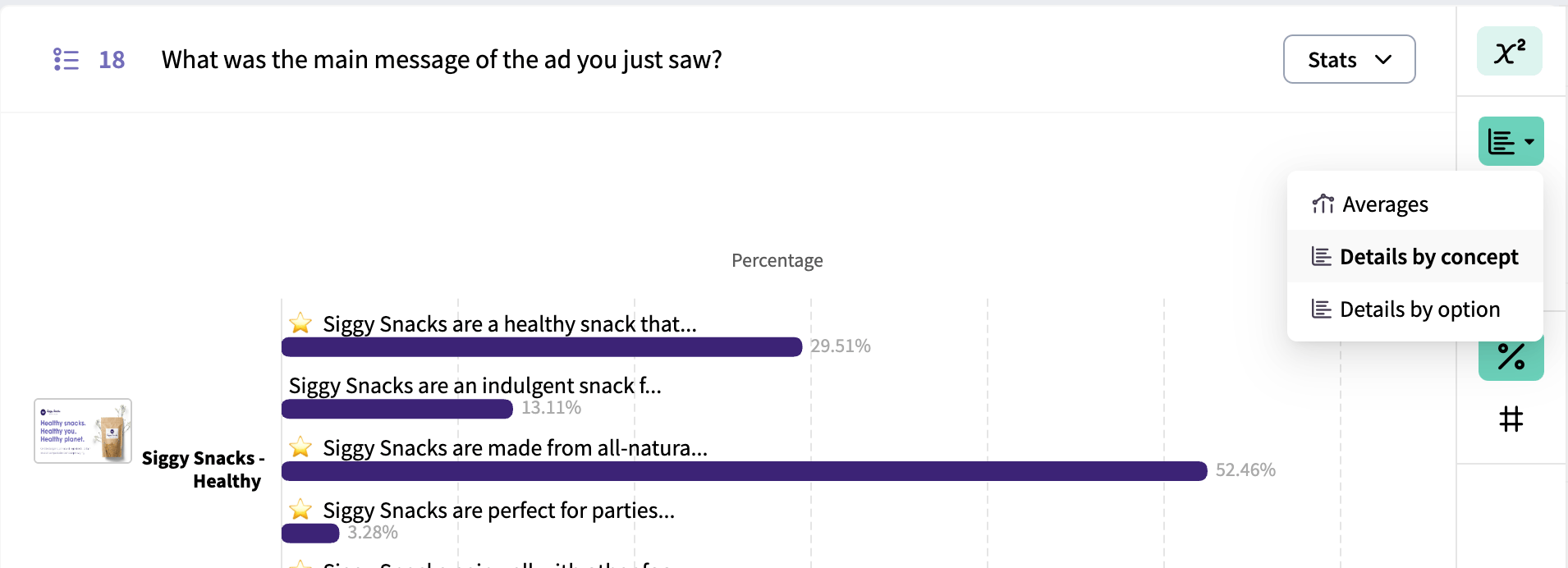
In the Analyze module, navigate to the Concept Test tab in the navigation pane on the left.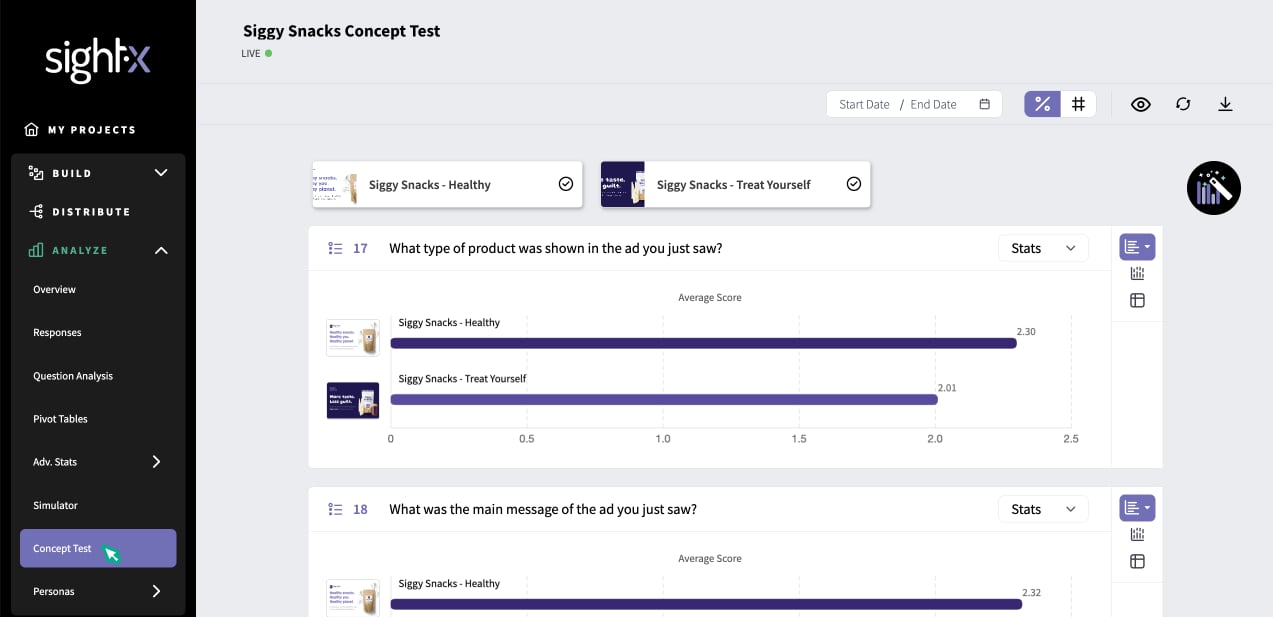

Concept Test Results in Data Tables
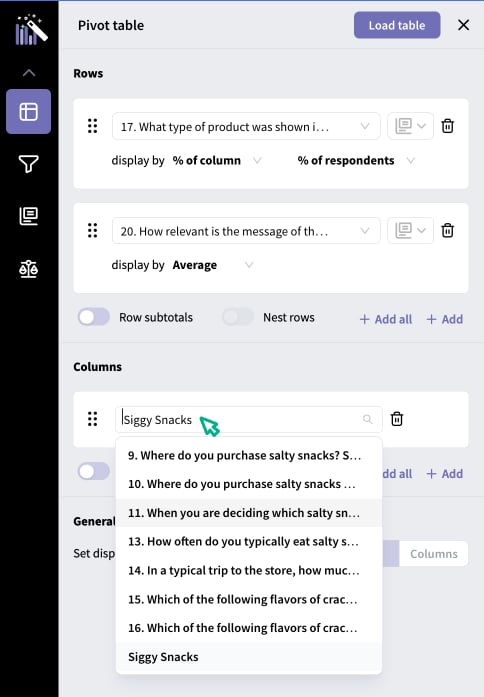
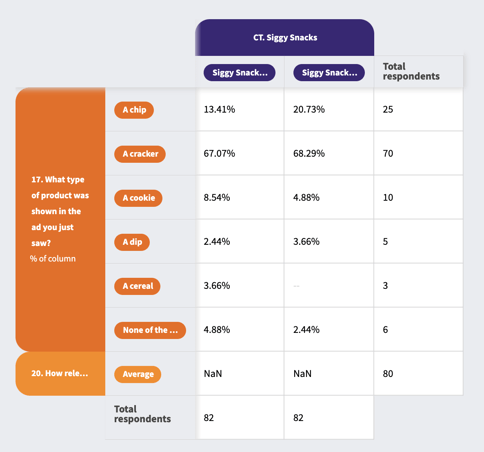
If you want to generate data tables or crosstabs comparing concept test results, you can do so in the Pivot Tables tab in the left navigation pane. Simply set the concept test as either a row or column, and generate the table.