Define a Scoring Variable

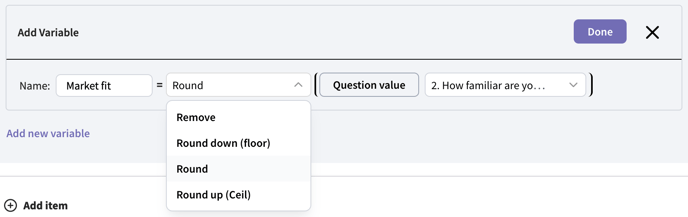
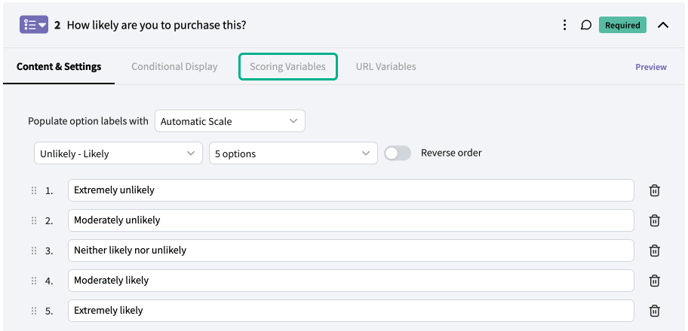
First, you’ll need to define the variable you want to use to capture points. Scoring variables can be defined on any question or text block inside your project that sits before the scoring questions begin. Click on the tab labeled “Scoring variables” in the item where you want to define the variable. Scoring Variables Next, click “Add new variable”. Here you’ll name the variable and set its initial value. Scoring Variables The initial value can be set as:
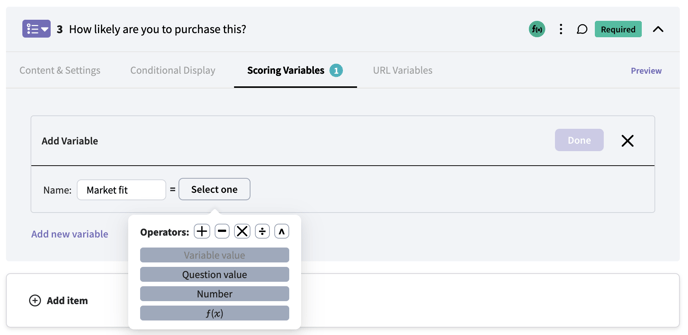
  1. Variable value: If you already have any scoring variables defined, you can set the initial value of a new variable to another variable.
  2. Question value: The answer that the respondent gave to a previous numeric (or scale) question in the survey.\ Scoring Variables

  3. Number: A numeric value. Typically, scoring variables are initially set to 0.

Scoring Variables 4. **f(x) : ** A mathematical function applied to a question value or number. The function options are remove, round down, round, or round up. Scoring Variables

Update a Scoring Variable

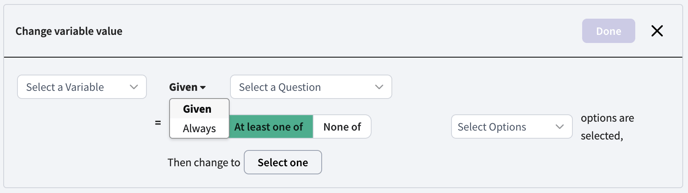
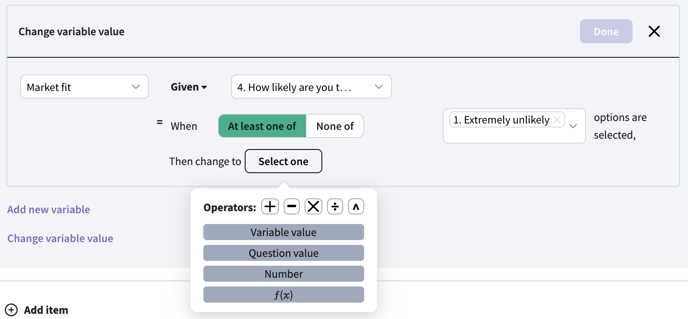
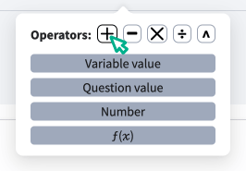
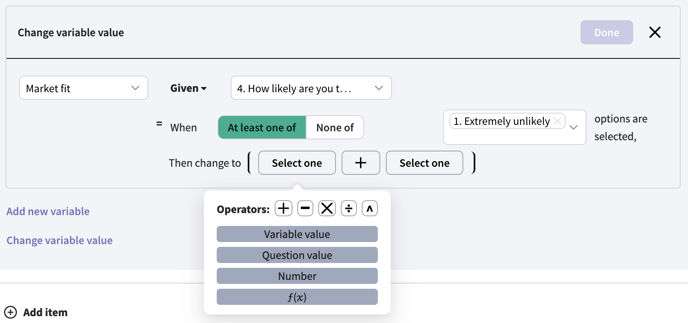
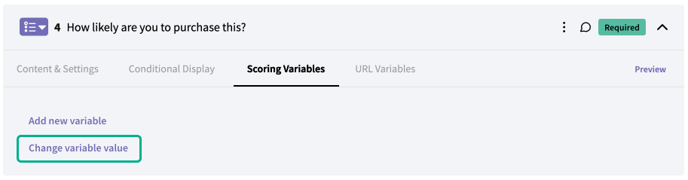
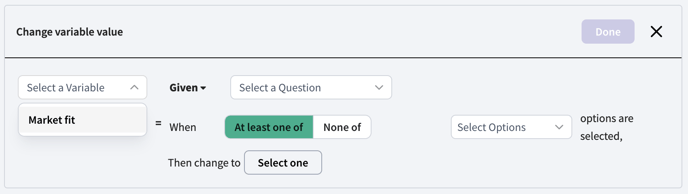
At points in the survey, you’ll want to update the variable based on a respondent’s answers. On the question where you want to update the variable, click on the Scoring Variables tab and select “Change variable value”. Scoring Variables First, select the variable you want to update by selecting it in the dropdown. Scoring Variables Next, choose whether the change should only occur under certain conditions (“Given ”), or whether it should always occur (“Always ”). Then set the conditions under which the variable should be updated. Scoring Variables Next, set the changes you want to make using question values, numbers, and formulas. Scoring Variables In this example, we’ll add one point to the variable if the conditions are met. So we’ll choose the ”+” operator to create a formula with addition. Scoring Variables Next we’ll click “Select one” to add a value to the equation. Here we’ll choose “Variable value” and select our variable “Market fit”. Scoring Variables For the other value in the equation, we’ll select “Number” and then enter “1”; this will increase the Market fit variable by 1 when the conditions are met.
**

Scoring Variables**

In this manner, you can continue to update the scoring variable as respondents proceed in the survey, using the existing variable value and numeric question input values. Important note: Scoring variables alone can only be retrieved in the raw data export. To view graphs with scoring variable results, to use scoring variables in filters or personas, or to include scoring variables in a crosstab, add an **embedded variable **to categorize the scoring variable data.