> ## Documentation Index
> Fetch the complete documentation index at: https://docs.repdata.com/llms.txt
> Use this file to discover all available pages before exploring further.
# Setting Up Quotas
> This article shows how to set up quotas in the SightX platform.
#### What's on this page:
* What are Quotas?
* Setting Up Quotas
* Setting Up Nested Quotas
#### What are Quotas?
Quotas are limits on the number of respondents you want to participate in your survey. You can set a quota for an entire survey - for example, an overall quota of 1000 would limit your survey to 1000 respondents - or you can set quotas on the number of respondents you want from various demographic groups. For example, a quota of 500 females and a quota of 500 males would limit your survey to 500 female participants and 500 male participants.
You can create quotas on any single-select multiple choice question in your survey to ensure you're receiving a balanced sample of your desired audience.
#### Setting Up Quotas
To set up quotas on your survey, navigate to the **Distribute** module in SightX, and select or create a campaign. Click [here](/sightx/knowledge-base/getting-started/distributing-a-survey) to learn more about creating campaigns. Once you've navigated to the campaign, click on the **Quotas** tab in the left menu.
**Set an Overall Quota**
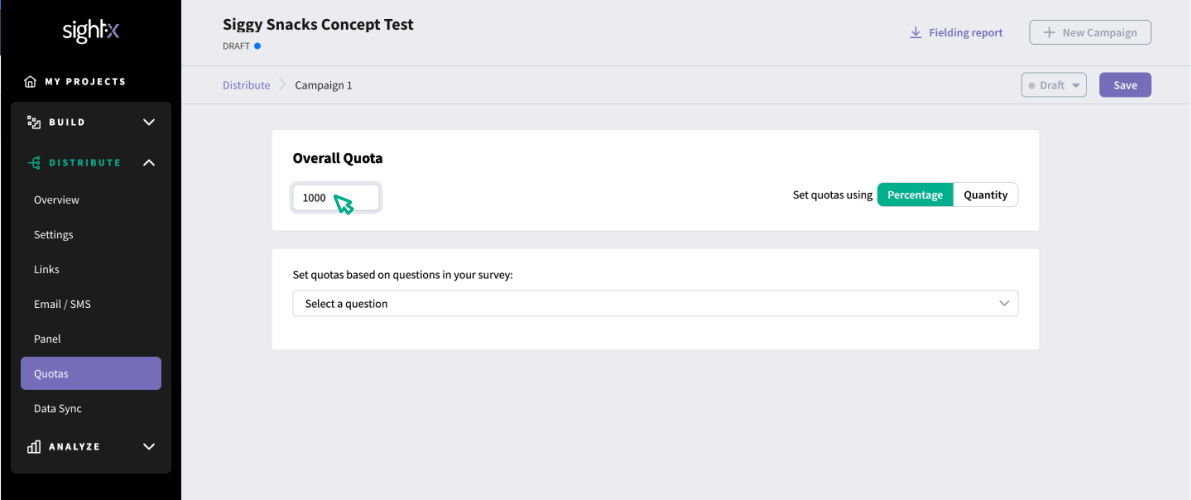
First, set the **Overall Quota** for your campaign. This is the total number of respondents who you want to participate in your survey as part of this campaign. In the example below, once 1000 respondents have completed the survey, no additional respondents will be allowed to participate in the survey unless the quota is increased.
 **Set Demographic Quotas**
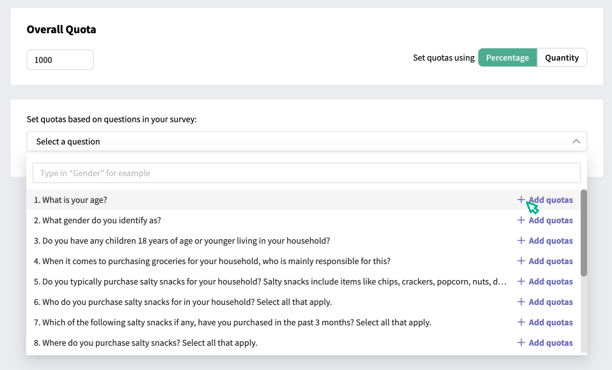
If you want to ensure a balanced sample of respondents across demographic groups, you can set quotas to limit respondents from each group. Start by finding the question you want to set quotas on in the dropdown and clicking "Add quotas".
**Set Demographic Quotas**
If you want to ensure a balanced sample of respondents across demographic groups, you can set quotas to limit respondents from each group. Start by finding the question you want to set quotas on in the dropdown and clicking "Add quotas".
 You can set up two types of quotas: **Exact** quotas or **Range** quotas.
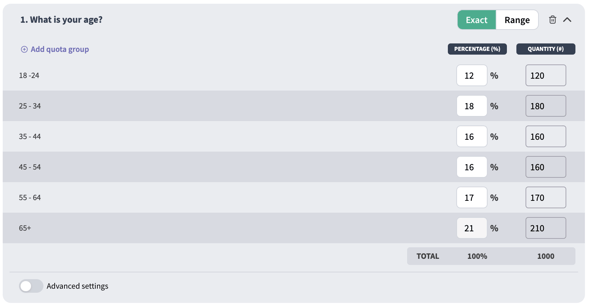
**Exact quotas** allow you to set an exact amount that a group should make up in your sample. This means that the quota will be reserved for that group.
You can set up two types of quotas: **Exact** quotas or **Range** quotas.
**Exact quotas** allow you to set an exact amount that a group should make up in your sample. This means that the quota will be reserved for that group.
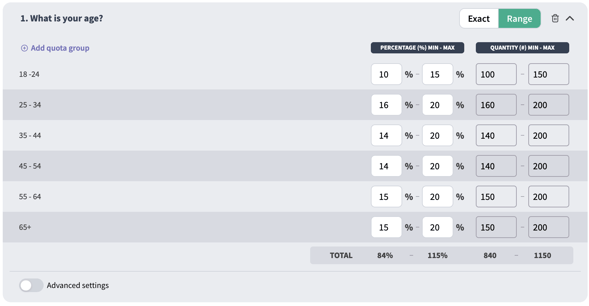
 **Range quotas** allow you to set a minimum, a maximum, or both for each option. If you set a minimum, that amount will be reserved for that group. If you set a maximum, responses will be allowed until the maximum is met.
 Once you're satisfied with the quota setup, click the **Save** button in the upper right corner of the page.
#### Setting Up Nested Quotas
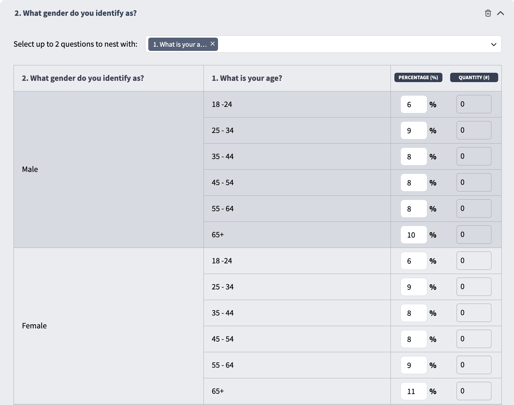
If you want even more control over demographic balancing in your survey, you can set nested quotas, which allow for criteria from up to three questions to be used to build a quota.
In the dropdown, select the question(s) you want to nest with your original question. Then, populate the percentage or quantity quotas for each nested group in the quotas column.
Once you're satisfied with the quota setup, click the **Save** button in the upper right corner of the page.
#### Setting Up Nested Quotas
If you want even more control over demographic balancing in your survey, you can set nested quotas, which allow for criteria from up to three questions to be used to build a quota.
In the dropdown, select the question(s) you want to nest with your original question. Then, populate the percentage or quantity quotas for each nested group in the quotas column.
 Useful Tip: When you're setting quotas in the nested quotas modal, you can track how many responses still have not been assigned to quotas in the grey box in the upper right corner.