> ## Documentation Index
> Fetch the complete documentation index at: https://docs.repdata.com/llms.txt
> Use this file to discover all available pages before exploring further.
# Generate Keys
> Create RSA public/private key pairs for signing JWT access token requests.
Upload your public key to SightX and keep your private key secure. SightX uses the key pair to validate JWT signatures when you request API access tokens.
## Linux
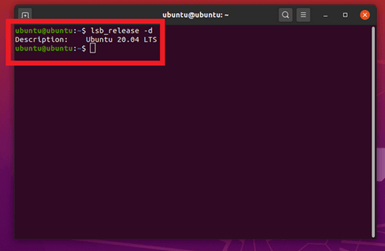
Open a terminal and create a `.ssh` directory if needed:
```bash theme={null}
mkdir /home/username/.ssh
cd /home/username/.ssh
```
Generate the key pair:
```bash theme={null}
ssh-keygen -t rsa -m pem
```
Press Enter to accept the default filename (`id_rsa`), then optionally set a passphrase.
 ## Windows (PuTTY)
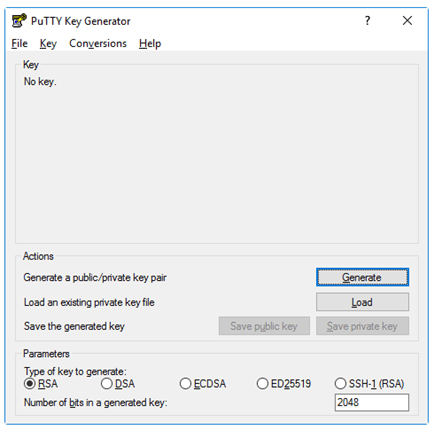
1. Download PuTTYgen from the [PuTTY download page](https://www.putty.org/).
2. Open PuTTYgen and click **Generate**.
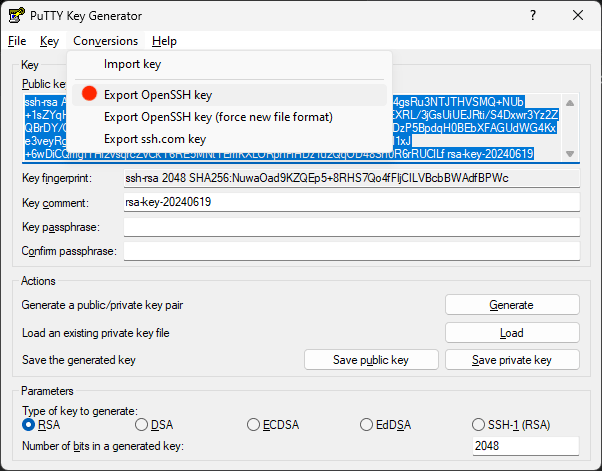
3. Save the public key and export the private key in PEM format.
## Windows (PuTTY)
1. Download PuTTYgen from the [PuTTY download page](https://www.putty.org/).
2. Open PuTTYgen and click **Generate**.
3. Save the public key and export the private key in PEM format.

 ## macOS
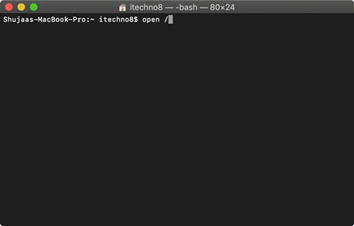
Open Terminal and run:
```bash theme={null}
ssh-keygen -t rsa -m pem
```
## macOS
Open Terminal and run:
```bash theme={null}
ssh-keygen -t rsa -m pem
```
 Export the private key in PEM format when prompted.
 ## Next steps
1. Upload your public key to SightX.
2. Receive your client ID by email.
3. Configure JWT claims on the [JWT Data](/sightx/guides/03-jwt-data) page.
4. Request an access token using the [authentication endpoint](/sightx/endpoints/post-v1-m2m-token).
## Next steps
1. Upload your public key to SightX.
2. Receive your client ID by email.
3. Configure JWT claims on the [JWT Data](/sightx/guides/03-jwt-data) page.
4. Request an access token using the [authentication endpoint](/sightx/endpoints/post-v1-m2m-token).